
Azure DevOps Boards
StackHawk’s official Azure DevOps Boards integration.
This feature is available on the StackHawk Enterprise plan.
Overview
The Azure DevOps Boards integration connects StackHawk scan findings to your Azure DevOps project management workflow. Create new work items from findings or link findings to existing work items.
Features
- Create Azure DevOps Boards work items directly from HawkScan findings
- Link findings to existing work items
- Configure default project and work item type
Requirements
StackHawk
- A StackHawk account with the Azure DevOps Boards integration enabled. Contact Support to enable it.
- No other project management integration installed. StackHawk currently supports one project management integration per organization.
Azure DevOps Boards
- Login access to the Azure DevOps Boards workspace you want to connect
- Permissions to create work items and add comments
- Ability to create a Personal Access Token with full access
Permissions
The integration requires these permissions on your Azure DevOps Boards workspace:
- Read access
- Write access
Installation
- Log into StackHawk and go to the Azure DevOps Boards Integration page.
- Click Link Azure DevOps Boards. This opens a connection modal powered by Merge.
- Enter your username, Personal Access Token, and workspace name.
- The modal verifies your connection and completes the setup.
IP Allowlist
If your Azure DevOps Boards workspace restricts access by IP address, add these addresses to your allowlist:
44.194.126.11
44.194.4.0
3.232.227.174
3.214.125.237
54.158.121.71
44.193.163.62
These IP addresses are specific to the Azure DevOps Boards integration and differ from other StackHawk integrations.
Usage
Configuration
Set default project and work item type on the Azure DevOps Boards Integration page. These defaults pre-populate when you send findings to Azure DevOps, but you can select different options for individual findings.
Connection Status
The integration page displays connection status. If issues are detected, status details help identify the problem. Most connection issues require re-authenticating with updated credentials.
Sending Findings to Azure DevOps Boards
- Go to Scans > Scan Details > Findings.
- Select the checkbox for a Path, Status, and Method.
- Click Actions > Send to Azure DevOps.
- Choose to create a new work item or link to an existing one.
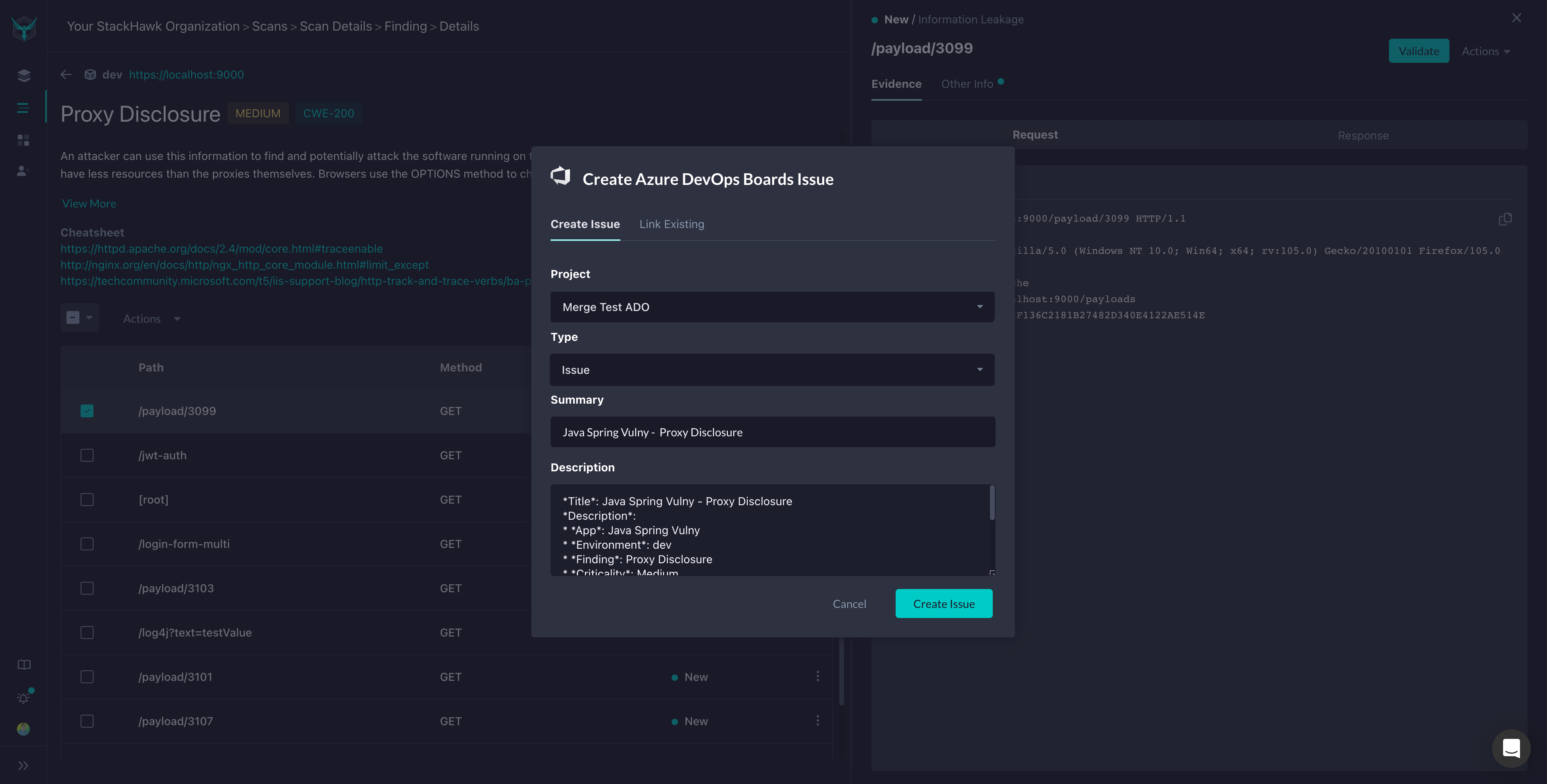
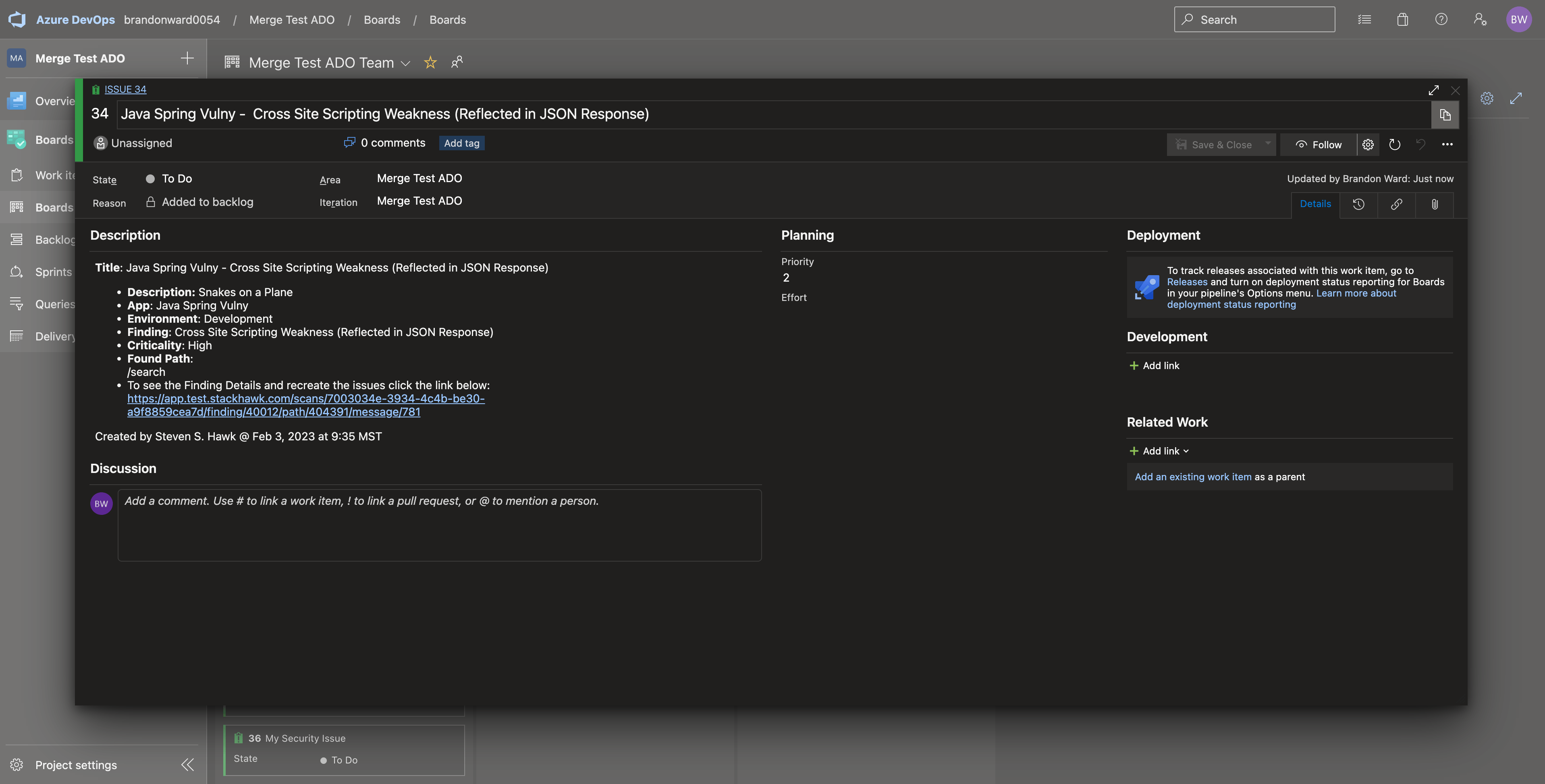
Creating a New Work Item: Select the project and work item type. Click Create Issue to create the work item with finding details.
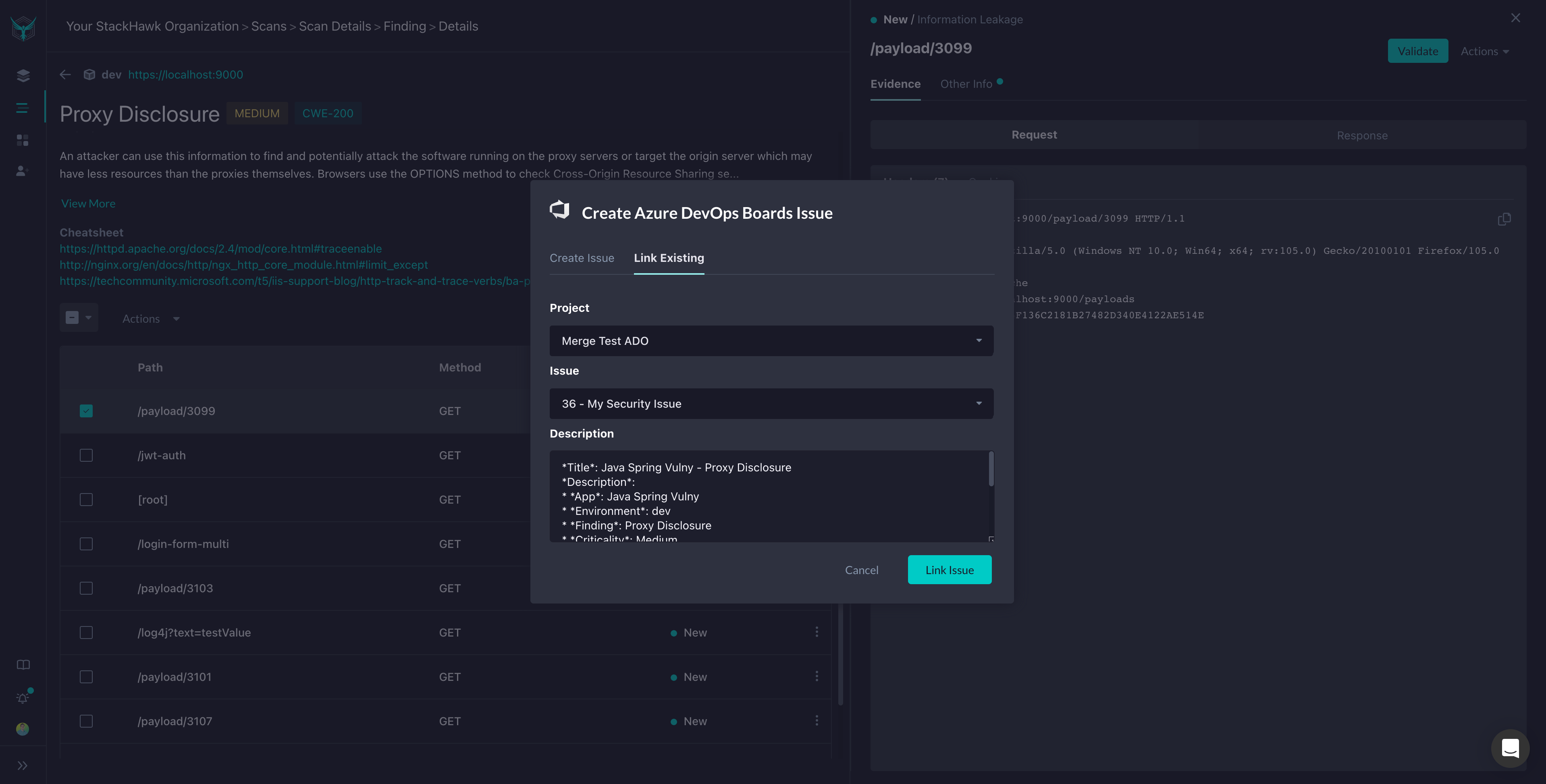
Linking to an Existing Work Item: Select the project, then choose a work item from the dropdown. If the work item does not appear, verify the project selection and enter the work item ID. Click Link Issue to add a comment with finding details to the work item.
Other Actions
To change a finding’s status, select the Path, Status, and Method, then choose a different action from the menu.
Troubleshooting
Work Items Not Appearing in Link Dropdown
Newly created work items in Azure DevOps Boards can take up to an hour to sync and appear in StackHawk’s link dropdown.
Custom Fields on Work Item Types
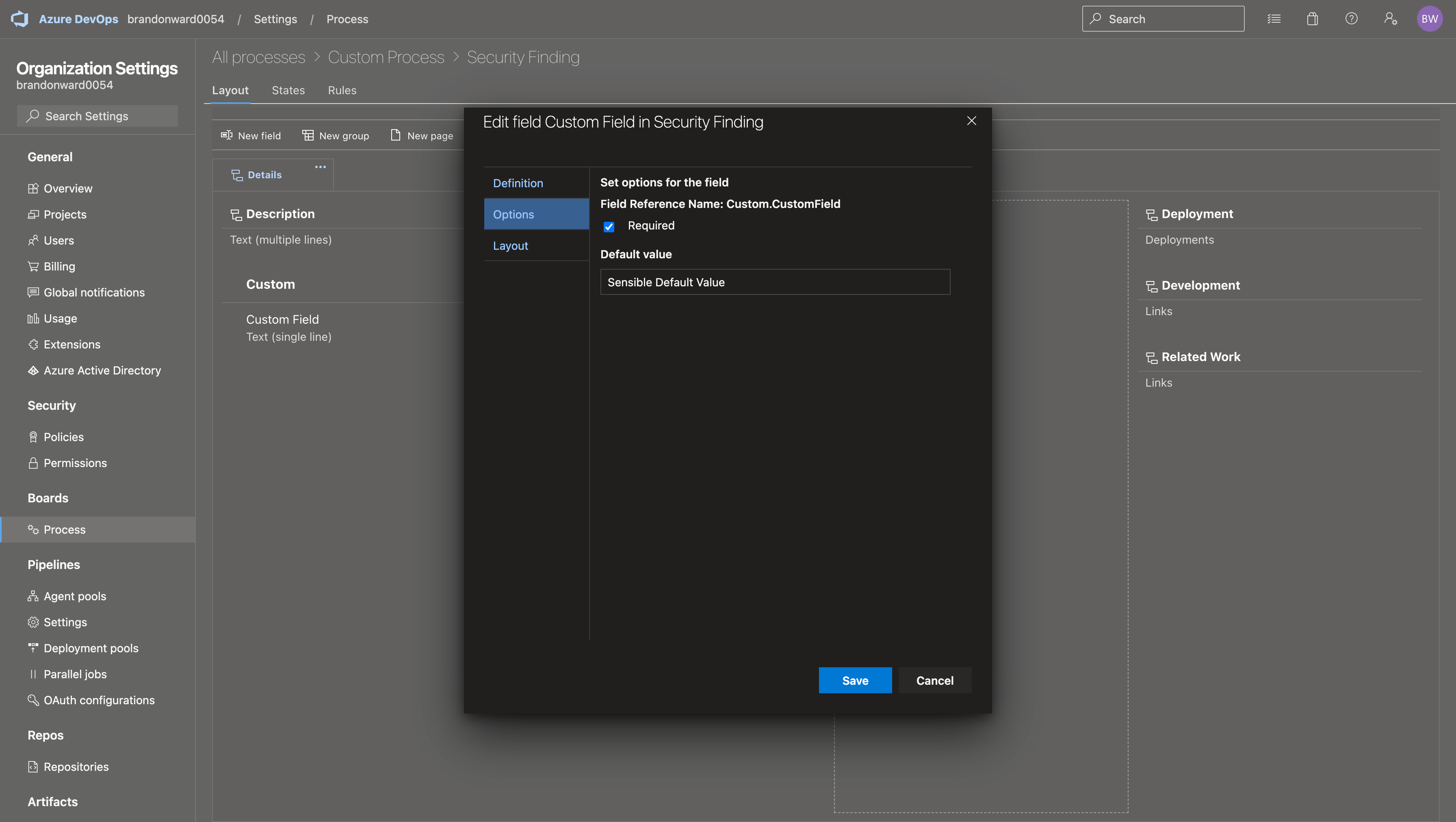
If your Azure DevOps project uses custom fields on work item types, ensure those fields have default values defined. Missing defaults can prevent StackHawk from creating work items.
Removing the Integration
- Go to the Azure DevOps Boards Integration page.
- Click Disconnect.
- Click Yes, Disconnect to confirm.
Feedback
Have suggestions or feedback? Contact StackHawk Support.