

Atlassian Bamboo

This guide will show you how to run HawkScan against your application in Atlassian Bamboo. We skip over the build and deploy phases and focus on the scan itself. We assume that you can either deploy your app to an integration environment available to your Bamboo build agent, or run it directly on the build agent for testing.
Protect Your API Key
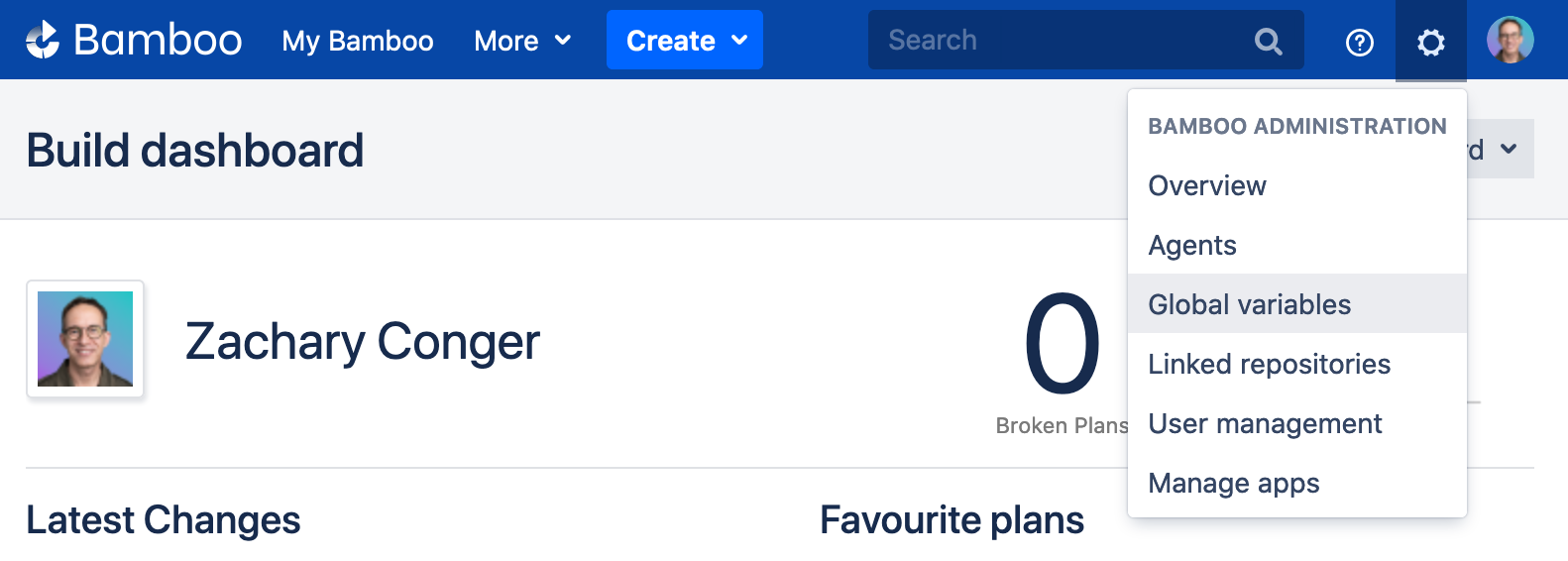
For starters, store your StackHawk API key as a secret variable in Bamboo. From the Bamboo console, select Administration (⚙️) → Global variables.
Add a variable called secret_hawk_api_key and save your API key as the value, like so.
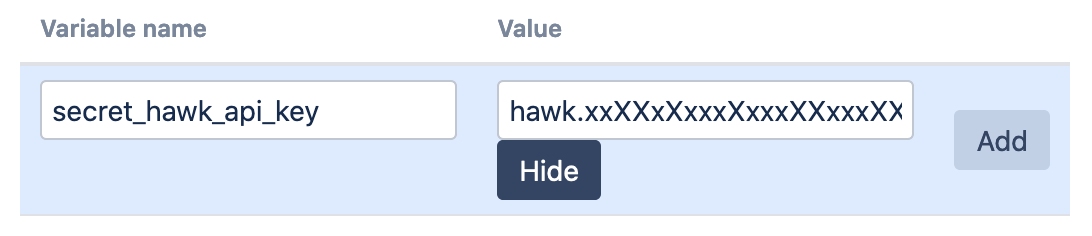
Prepend the variable name with secret, so that Bamboo will hide the value in the console and logs.
Create a Repository
Create a Git repository to store your configuration files related to this guide. In Bamboo, add a link to this repository by following the steps under Administration (⚙️) → Linked repositories.
For your real-world projects, all of the configuration files we describe below would normally go into your application’s project repository.
Scenarios
We describe Bamboo jobs to scan your app in three different scenarios:
- Scenario 1: Scan an established integration environment accessible to your Bamboo agent
- Scenario 2: Scan your app running on the Bamboo agent and listening on the localhost address
- Scenario 3: Scan your app in the context of a Docker Compose set of containers
Scenario 1: Scan an Integration Environment
In this scenario we scan an app in an established environment where Bamboo has deployed your application for integration testing. We will use the public website, example.com, to represent that environment.
Create a new Bamboo build plan called “Scan an Integration Environment”, and link it to the repository you linked above.
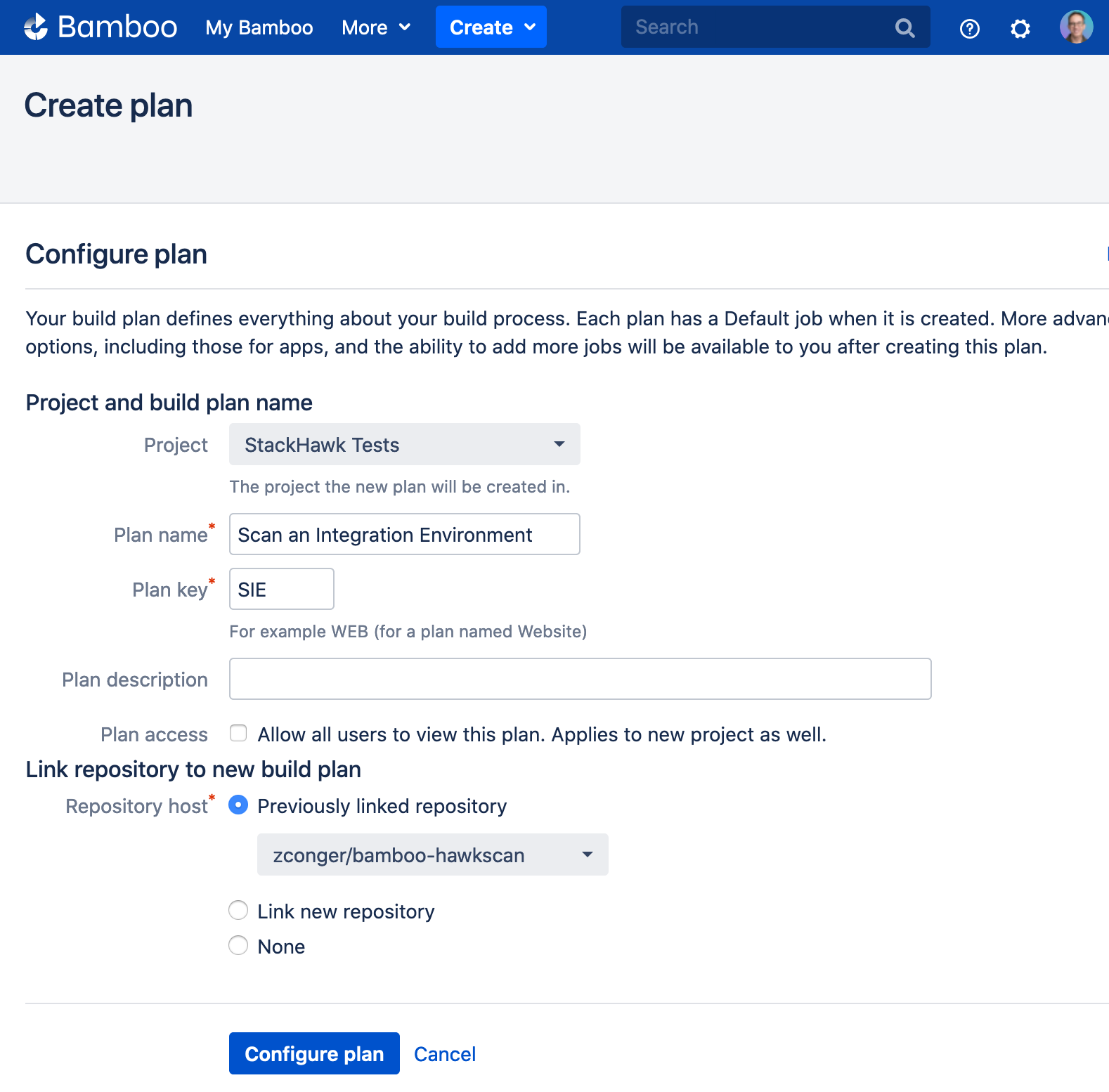
Configure the new plan.
Task: Run HawkScan
In the default job, add a new Script task. Under Interpreter, select Shell, set Script location to Inline, and enter the following Script body:
# Optional: pin a version (6.0.0 or later). Leave it unset to install the latest release.
# export HAWK_INSTALL_VERSION=6.6.0
curl -fsSL https://download.stackhawk.com/hawk/install.sh | sh
export PATH="$HOME/.hawk/bin:$PATH"
hawk --api-key="$HAWK_API_KEY" --no-color scan
Under Environment variables, enter HAWK_API_KEY="${bamboo.secret_hawk_api_key}". This passes the private API key variable to HawkScan to allow it to connect to the StackHawk platform.
The script installs the hawk CLI with the hawk CLI install script, which downloads the latest HawkScan release and checks its checksum. The install script doesn’t change the PATH, so the next line adds its install directory, ~/.hawk/bin, before the scan runs. Your Bamboo agent needs curl, and it runs hawk directly, so it needs no Docker.
Docker Alternative
To run HawkScan as a Docker container instead, add a new Docker task in place of the Script task.
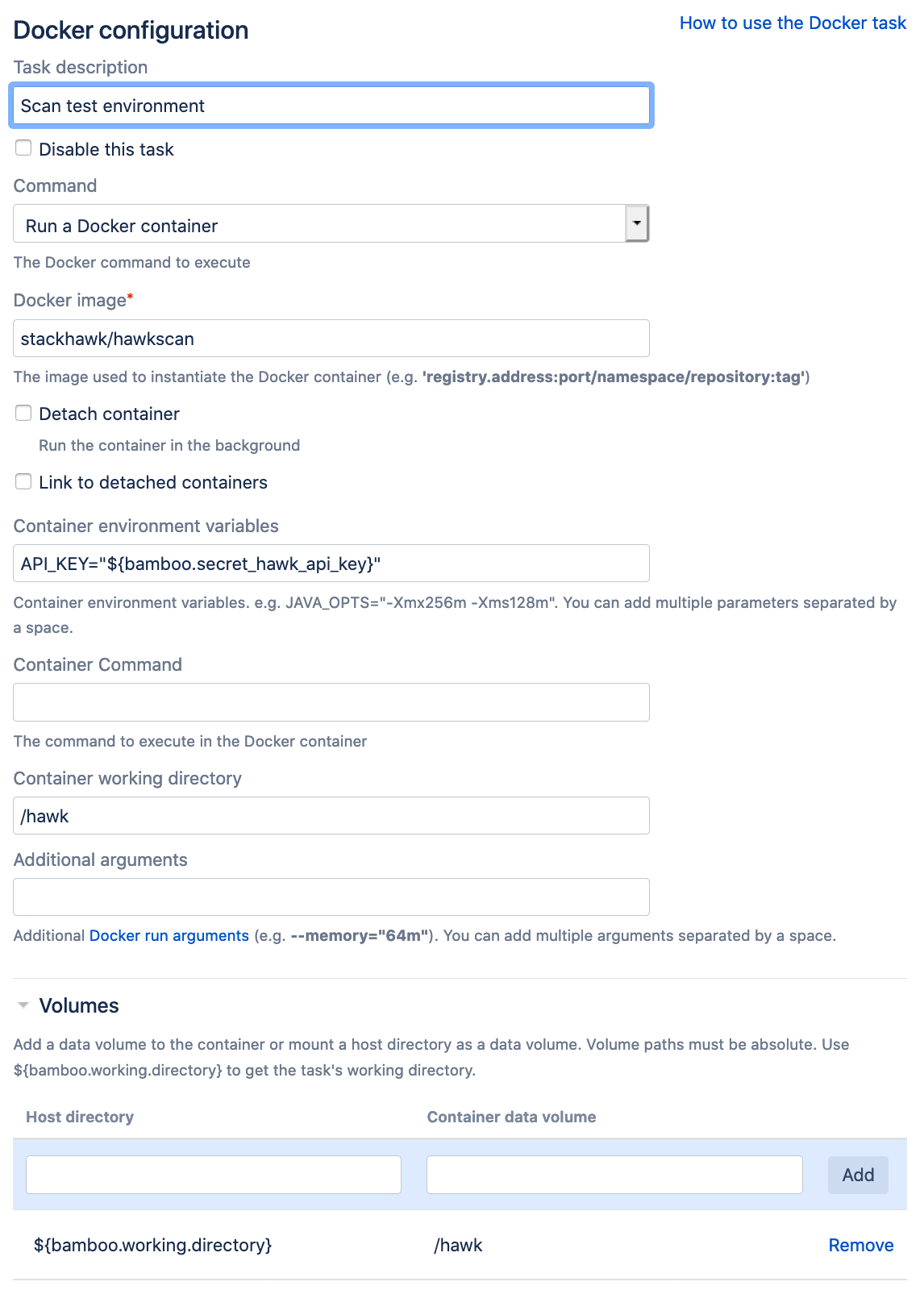
In the Docker task configuration, under Command, select Run a Docker container. Under Docker image, enter, stackhawk/hawkscan. And under Environment variables, enter API_KEY="${bamboo.secret_hawk_api_key}" This will pass the private API key variable to HawkScan to allow it to connect to the StackHawk platform.
Under Container working directory, replace the default value with /hawk. And under Volumes, replace the default Container data volume value with /hawk. Save your task configuration. It should look like this:
Configure HawkScan
From the StackHawk app, navigate to Applications, and create a new application called Example.
In your test repository, create a new HawkScan configuration file, and add the following contents:
app:
  applicationId: xxXXXXXX-xXXX-xxXX-XXxX-xXXxxXXXXxXX
  host: http://example.com
  env: Development
Replace the value of app.applicationId with the applicationId you just created in the StackHawk platform. Commit and push this change to your repository.
Run It
Now run your new Bamboo plan and watch the progress from the Bamboo console. You should see HawkScan run and print out a summary of results, including a link to your scan results in the StackHawk platform. Success! Check for your scan results in the StackHawk app.
Scenario 2: Scan Localhost
In this scenario we scan a service running directly on the Bamboo agent and listening on a localhost address.
Create a new Bamboo build plan called “Scan Localhost”, and link it to your repository.
Configure the new plan as follows.
Task 1: Run a Local Service
In the first task we will run a service on the localhost address. This could be any service, but to simplify the configuration, we will use an Nginx Docker container, which exposes a simple web server.
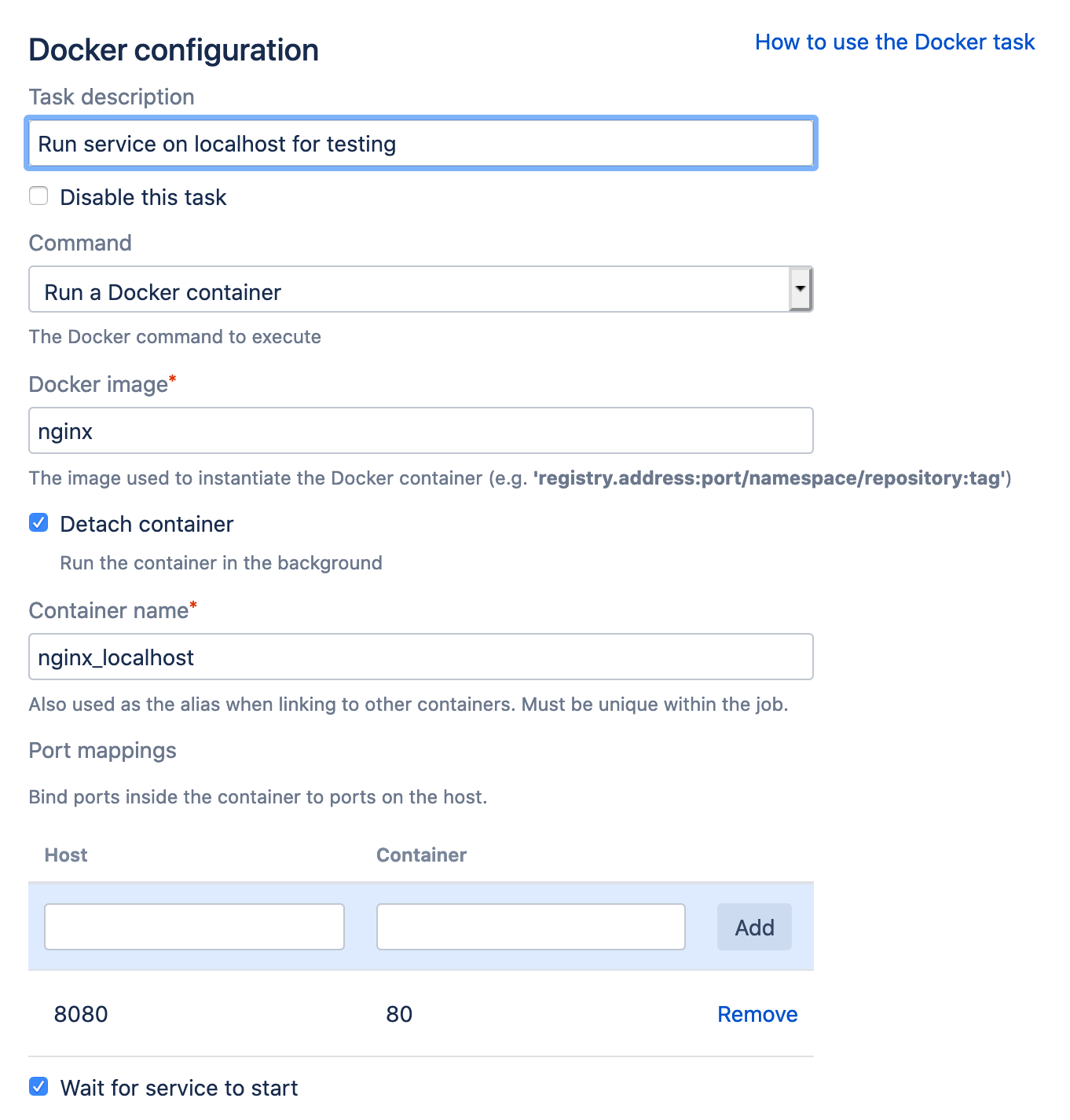
Create a new Docker task. In the task configuration, under Command, select Run a Docker container. Under Docker image, enter, nginx. Check the box for Detach container. Under Container name, enter nginx_localhost. Under Port mappings, set Host to 8080, and Container to 80. Check the box for Wait for service to start.
Your new task should look like this.
Leave the rest of the options set to their defaults.
Task 2: Run HawkScan
Add a new Script task. Under Interpreter, select Shell, set Script location to Inline, and enter the following Script body:
# Optional: pin a version (6.0.0 or later). Leave it unset to install the latest release.
# export HAWK_INSTALL_VERSION=6.6.0
curl -fsSL https://download.stackhawk.com/hawk/install.sh | sh
export PATH="$HOME/.hawk/bin:$PATH"
hawk --api-key="$HAWK_API_KEY" --no-color scan
Under Environment variables, enter HAWK_API_KEY="${bamboo.secret_hawk_api_key}". This passes the private API key variable to HawkScan to allow it to connect to the StackHawk platform.
The script installs the hawk CLI with the hawk CLI install script, which downloads the latest HawkScan release and checks its checksum. The install script doesn’t change the PATH, so the next line adds its install directory, ~/.hawk/bin, before the scan runs. Your Bamboo agent needs curl, and it runs hawk directly, so it needs no Docker.
Because the hawk CLI runs directly on the Bamboo agent, it reaches the service at localhost with no extra network configuration. To run HawkScan as a Docker container instead, configure the Docker task described in the Scenario 1 Docker alternative.
Configure HawkScan
From the StackHawk app, navigate to Applications, and create a new application called Localhost.
In your test repository, create or modify your HawkScan configuration file, and add the following contents:
app:
  applicationId: xxXXXXXX-xXXX-xxXX-XXxX-xXXxxXXXXxXX
  host: http://localhost:8080
  env: Development
Replace the value of app.applicationId with the applicationId you just created in the StackHawk platform. Commit and push this change to your repository.
Run It
Now run your new Bamboo plan and watch the progress from the Bamboo console. You should see HawkScan run and print out a summary of results, including a link to your scan results in the StackHawk platform. Awesome! Check for your scan results in the StackHawk app.
Scenario 3: Scan in Docker Compose
In this scenario, we build an integration environment directly on the Bamboo agent with Docker Compose, and scan the port it publishes with the hawk CLI.
Create a new Bamboo build plan called “Scan Docker Compose”, and link it to your repository.
Configure the new plan as follows.
Task 1: Integration Environment
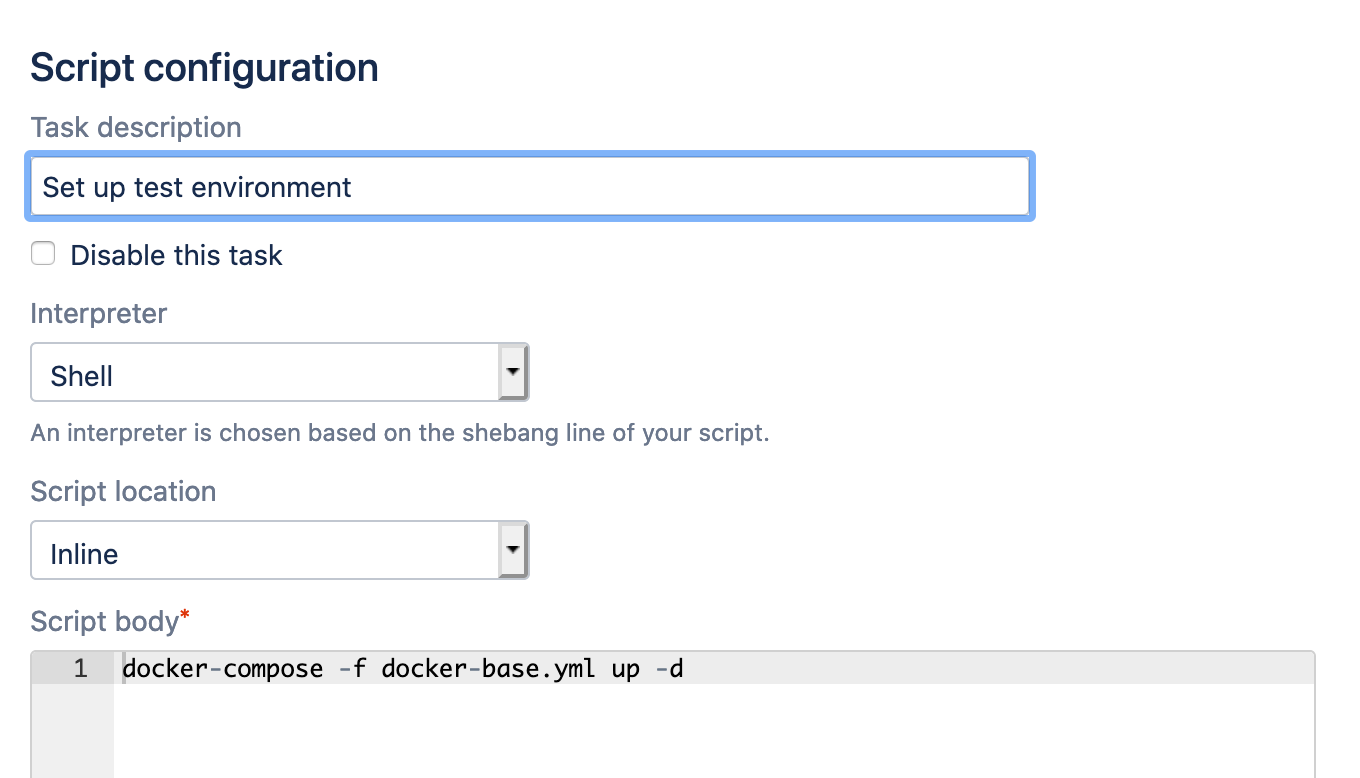
Create a new Script task with an inline shell script as follows:
docker-compose -f docker-base.yml up -dThe Docker Compose configuration docker-base.yml that we will create below will start up an Nginx container named nginx_test, published on localhost port 8080. This is our simple integration test environment.
Task 2: Scan
Create a second Script task with an inline shell script:
curl -fsSL https://download.stackhawk.com/hawk/install.sh | sh
export PATH="$HOME/.hawk/bin:$PATH"
hawk --api-key="$HAWK_API_KEY" --no-color scan
Under Environment variables, enter HAWK_API_KEY="${bamboo.secret_hawk_api_key}" to pass your API key to HawkScan.
Task 3: Tear Down
Create a third Script task that removes the containers when the scan is done:
docker-compose -f docker-base.yml downDrag this task into the job’s Final tasks section, so Bamboo removes the containers even if the scan fails.
Configure Docker Compose
The Docker Compose configuration starts an Nginx container named nginx_test and publishes it on localhost port 8080.
version: "3.7"
services:
  # Fire up the app to test, nginx_test
  nginx_test:
    image: nginx
    ports:
      - 8080:80
Configure HawkScan
From the StackHawk app, navigate to Applications, and create a new application called Nginx.
In your test repository, create or modify your HawkScan configuration file, and add the following contents:
app:
  applicationId: xxXXXXXX-xXXX-xxXX-XXxX-xXXxxXXXXxXX
  host: http://localhost:8080
  env: Development
Replace the value of app.applicationId with the applicationId you just created in the StackHawk platform. Commit and push this change to your repository.
Run It
Run your new plan and watch the progress from the Bamboo console. You should see HawkScan run and print out a summary of results, including a link to your scan results in the StackHawk platform.
Check your scan results in the StackHawk app.
Docker Compose Alternative
You can also run HawkScan as a container in a Docker Compose overlay configuration, and scan your app by its service name. Replace the Task 2 script with:
docker-compose -f docker-base.yml -f docker-hawkscan.yml up --abort-on-container-exit
docker-compose -f docker-base.yml -f docker-hawkscan.yml down
In this script we are combining our simple docker-base.yml Docker Compose configuration with an overlay configuration, docker-hawkscan.yml. The overlay configuration defines the HawkScan container, which scans the test environment in docker-base.yml. The --abort-on-container-exit flag tells Docker Compose to tear the whole assembly down when HawkScan completes, and the docker-compose ... down command removes all containers at the end of the scan.
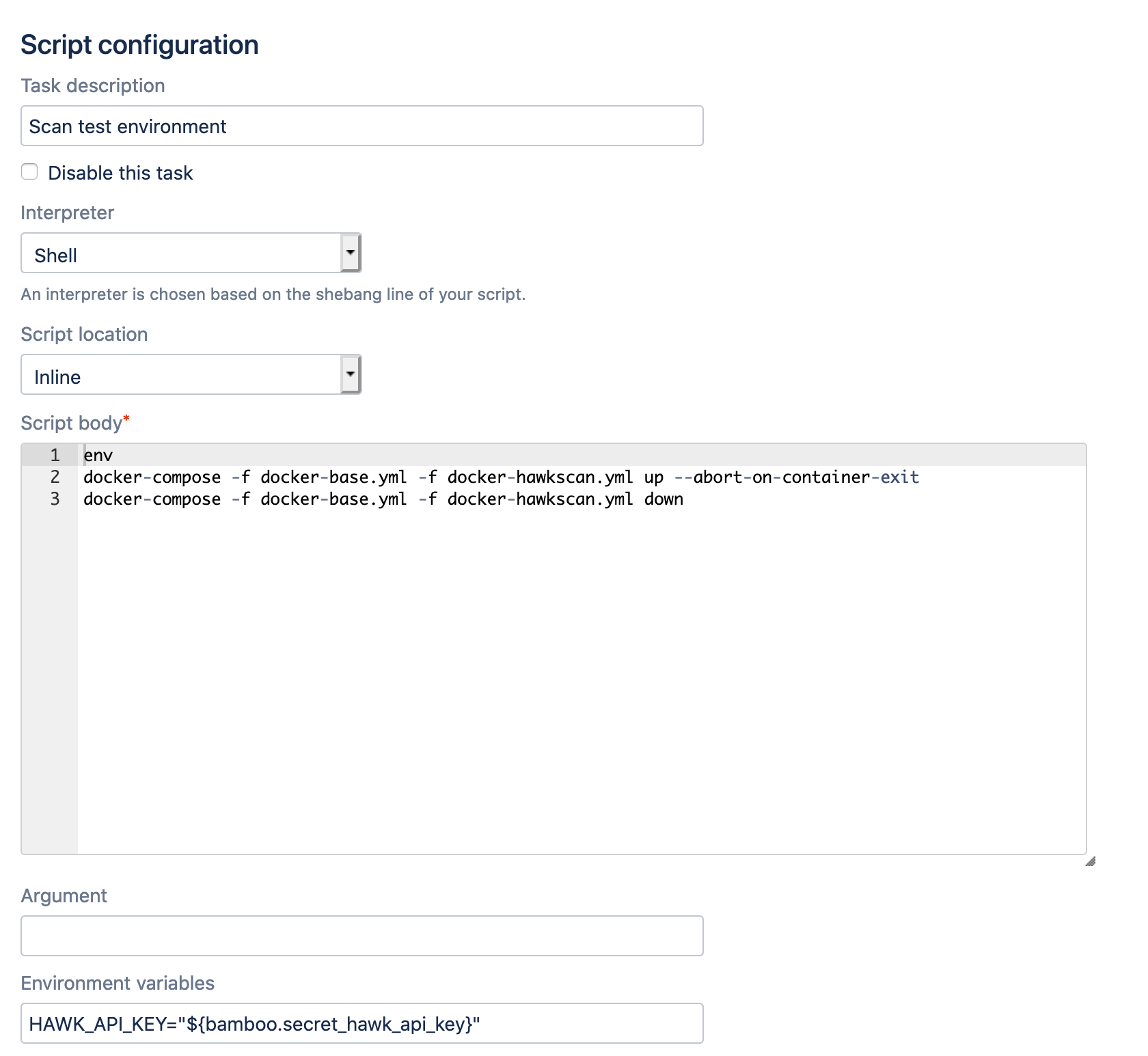
The overlay configuration runs HawkScan:
version: "3.7"
services:
  # Fire up hawkscan and scan the test app (nginx_test)
  hawkscan:
    image: stackhawk/hawkscan
    environment:
      API_KEY: "${HAWK_API_KEY}"
    volumes:
      - type: bind
        source: .
        target: /hawk
    tty: true
    depends_on:
      - nginx_test
With this alternative, set app.host in stackhawk.yml to http://nginx_test, the service name on the Docker Compose network.
Docker Compose can be a powerful way to run HawkScan and other integration tests in your Bamboo pipeline. In a more realistic scenario, you can add dependencies to your docker-base.yml configuration, such as a database. After launching your integration environment in the first script step, you can add more script steps to run database migrations and seed data prior to running the scan.