

Microsoft Teams

StackHawk’s official Microsoft Teams integration.
Overview
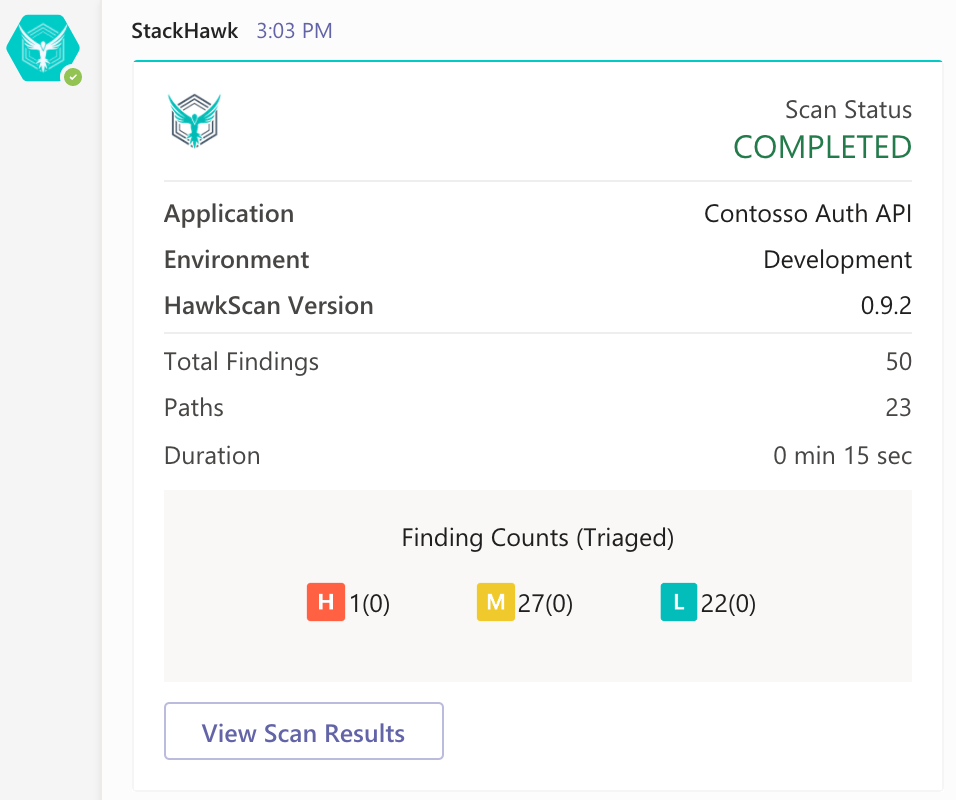
The Microsoft Teams integration sends scan notifications to configured Teams channels. Notifications include scan start, completion, and error events with links back to StackHawk for full results.
Features
- Receive notifications when scans start and complete
- View findings summaries directly in Teams
- Get error notifications with links to scan details
- Configure notifications per channel, application, and environment
Requirements
StackHawk
- A StackHawk account with the Microsoft Teams integration enabled. Contact Support to enable it.
Microsoft Teams
- Login access to the Teams workspace you want to connect
- Admin permissions to install Teams apps in your workspace
Permissions
The integration requests these Microsoft Teams permissions:
- Receive messages and data you provide to it
- Receive messages and data team members provide in a channel
- Send messages and notifications in a channel
- Access team information (team name, channel list, member names and email addresses)
Installation
- Log into StackHawk and go to the Teams Integration page.
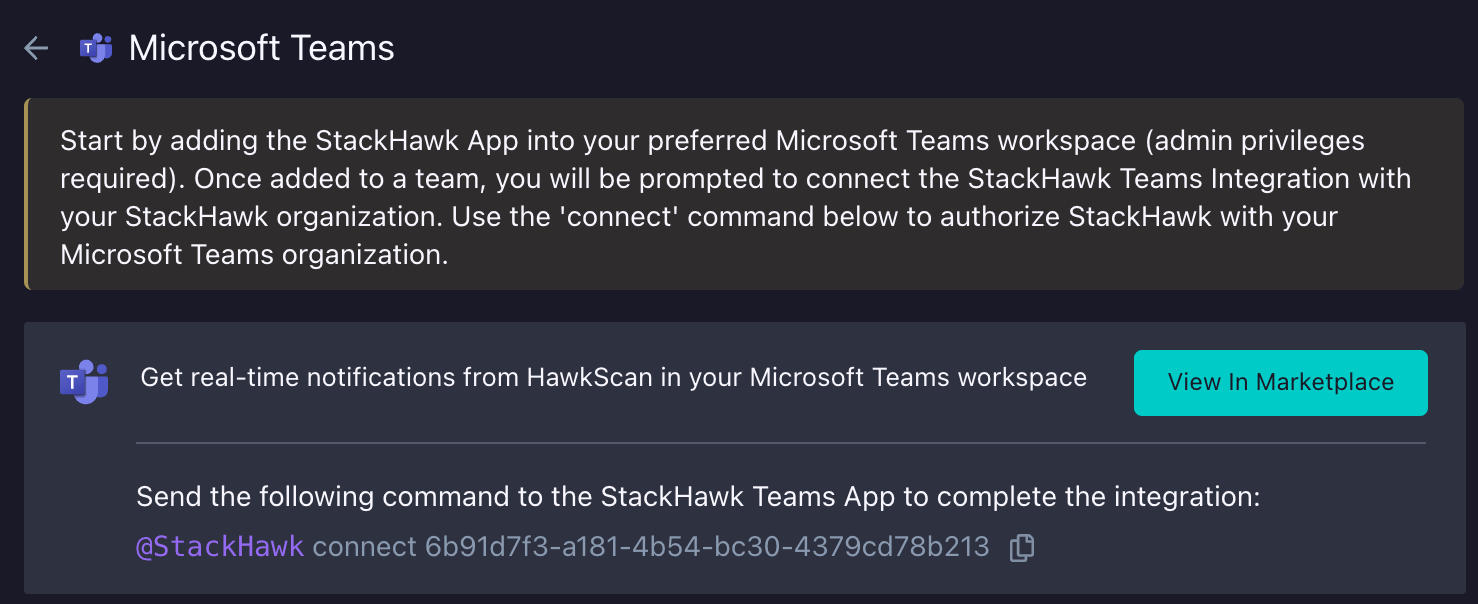
- Click Enable Teams to generate a temporary integration token.
- Click View In Marketplace to install the StackHawk app from the Microsoft Teams Marketplace.
- In Teams, click Add to a Team and select the Team you want to connect.
You can also install directly from the Microsoft Teams Marketplace.
Token Authorization
After installing the Teams app, connect it to your StackHawk organization:
- Go to the Teams Integration page in StackHawk.
- Copy the integration token. The token expires after one hour.
- In your Teams channel, send a direct message to the @StackHawk bot with the
connectcommand followed by the token. - A success message confirms the connection.
Configuration
Configure which Teams channels receive notifications and filter by application and environment.
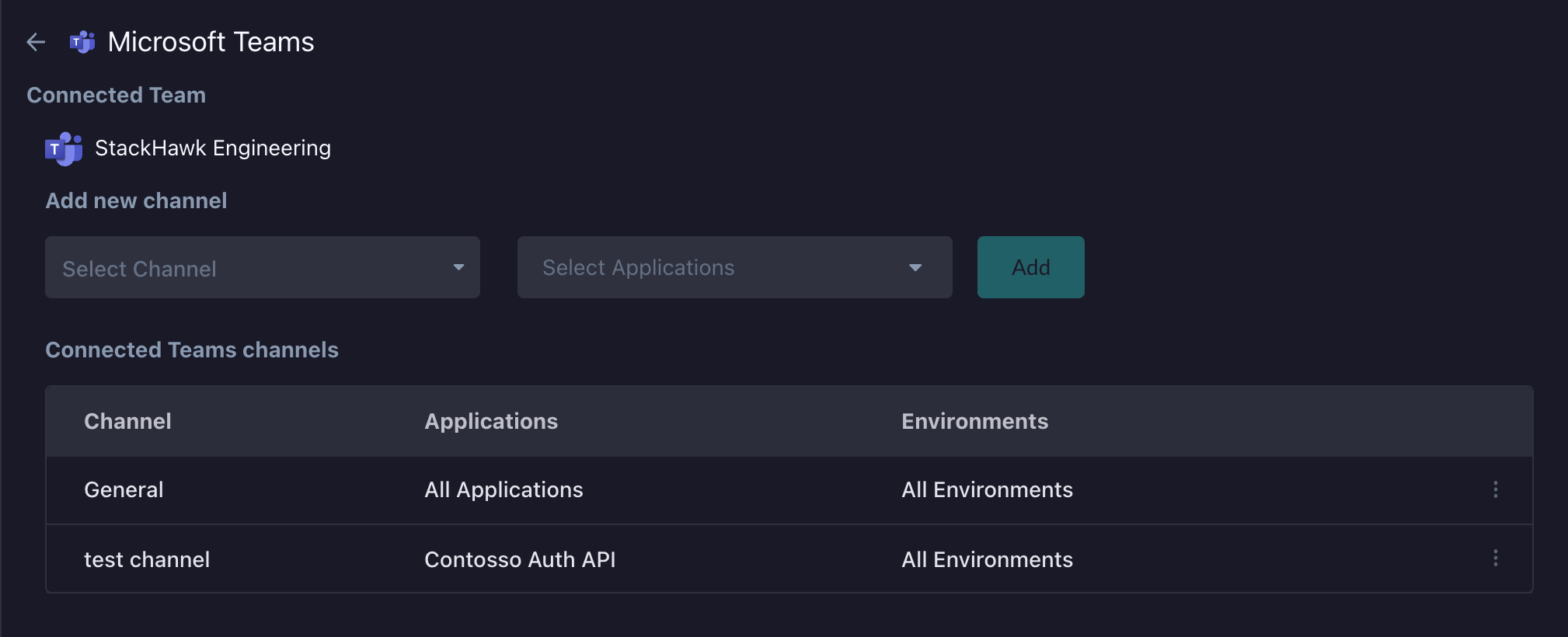
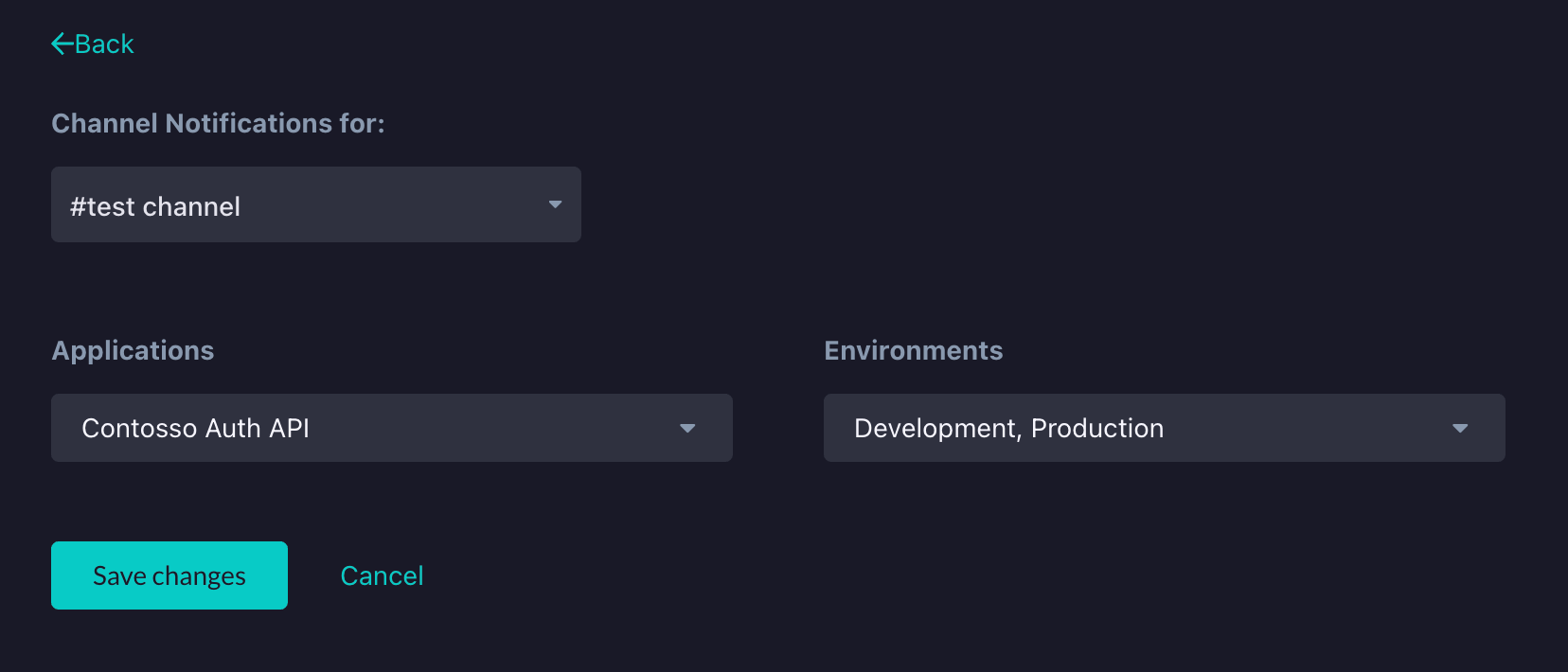
- Configuration is per-channel. Each channel can have different application and environment filters.
- With no applications selected, the channel receives notifications for all applications.
- With no environments selected, the channel receives notifications for all environments.
- Click the menu icon on any channel row to edit or remove its configuration.
Note: Private Teams channels cannot receive notifications.
Troubleshooting
If notifications are not appearing in Teams:
- Verify the channel is configured for the application and environment being scanned.
- Check the Microsoft 365 Service Status for outages.
- Confirm the StackHawk app is still installed in the Teams workspace.
- As a last resort, remove and reinstall the integration. This resets all channel configurations.
If issues persist, contact StackHawk Support.
Feedback
Have suggestions or feedback? Contact StackHawk Support.