

Slack

Send scan notifications to Slack channels when HawkScan runs and completes.
Overview
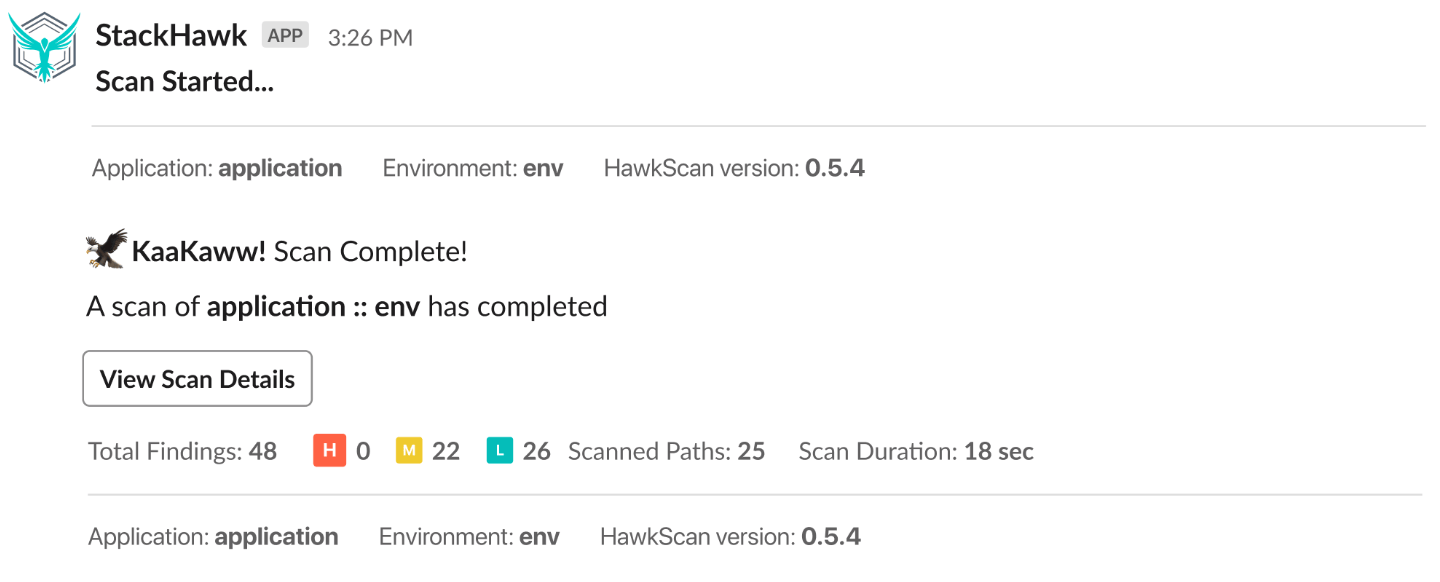
The StackHawk Slack integration sends notifications to your Slack workspace whenever a scan runs and completes, reporting findings as they are discovered. The integration uses OAuth 2.0 to connect your Slack workspace with StackHawk.
Features
- Receive notifications when HawkScan runs and completes
- Get a summary of findings with a link to the StackHawk platform on successful scans
- Receive error summaries with links to stacktraces on scan failures
Requirements
StackHawk
- A StackHawk account
Slack
- Signed in to the Slack workspace where you want to add the integration
- Permission to install Slack Apps in your workspace
Required Scopes
This integration requires the following Slack permissions:
| Scope | Description |
|---|---|
| View public channels | View basic information about public channels in the workspace |
| View private channels | View basic information about private channels that StackHawk has been added to |
| Send messages | Send messages as @stackhawk |
| Post to any channel | Send messages to channels @stackhawk is not a member of |
Setup
- Log in to StackHawk and go to the Slack Integration page.
- Click Install StackHawk for Slack. A new tab opens where you authorize the required scopes.
- Complete the authorization within one hour before the link expires.
- Once authorized, the integration is ready to configure.
Configuration
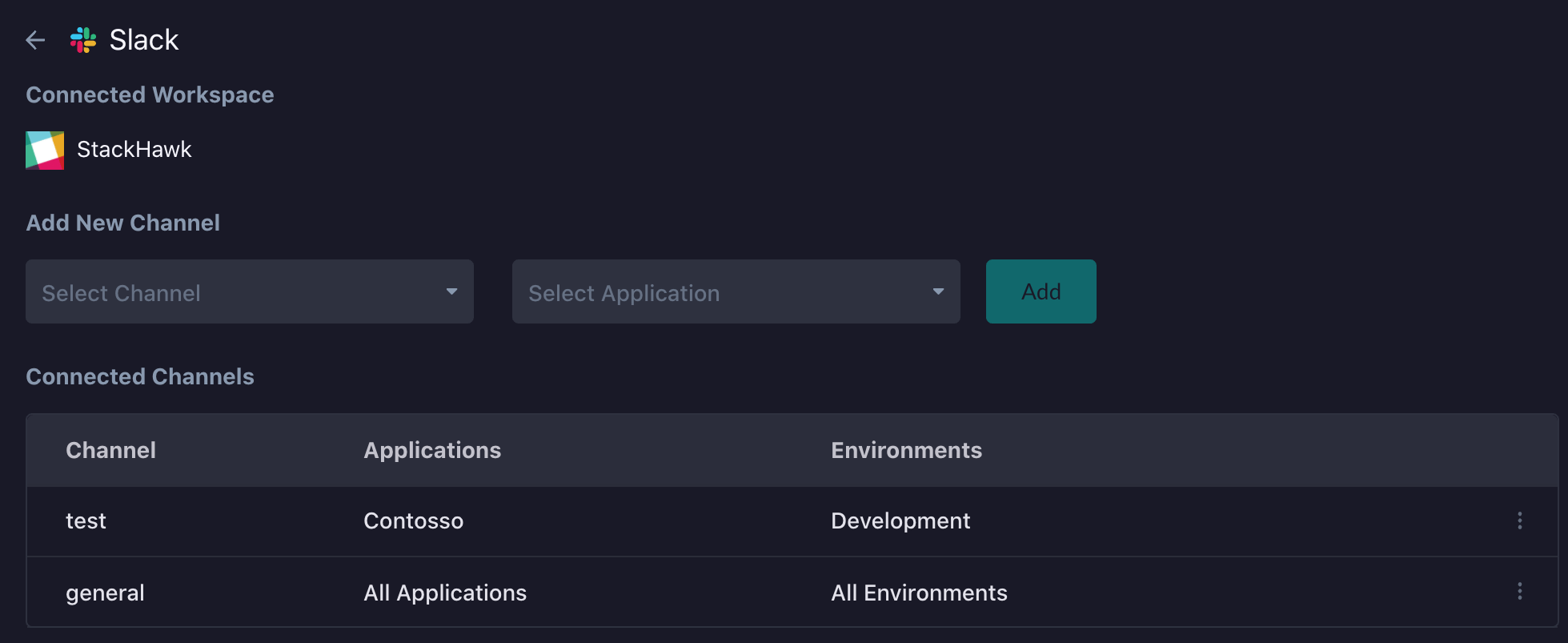
After authorization, configure which Slack channels receive notifications in the StackHawk platform.
Channel Settings
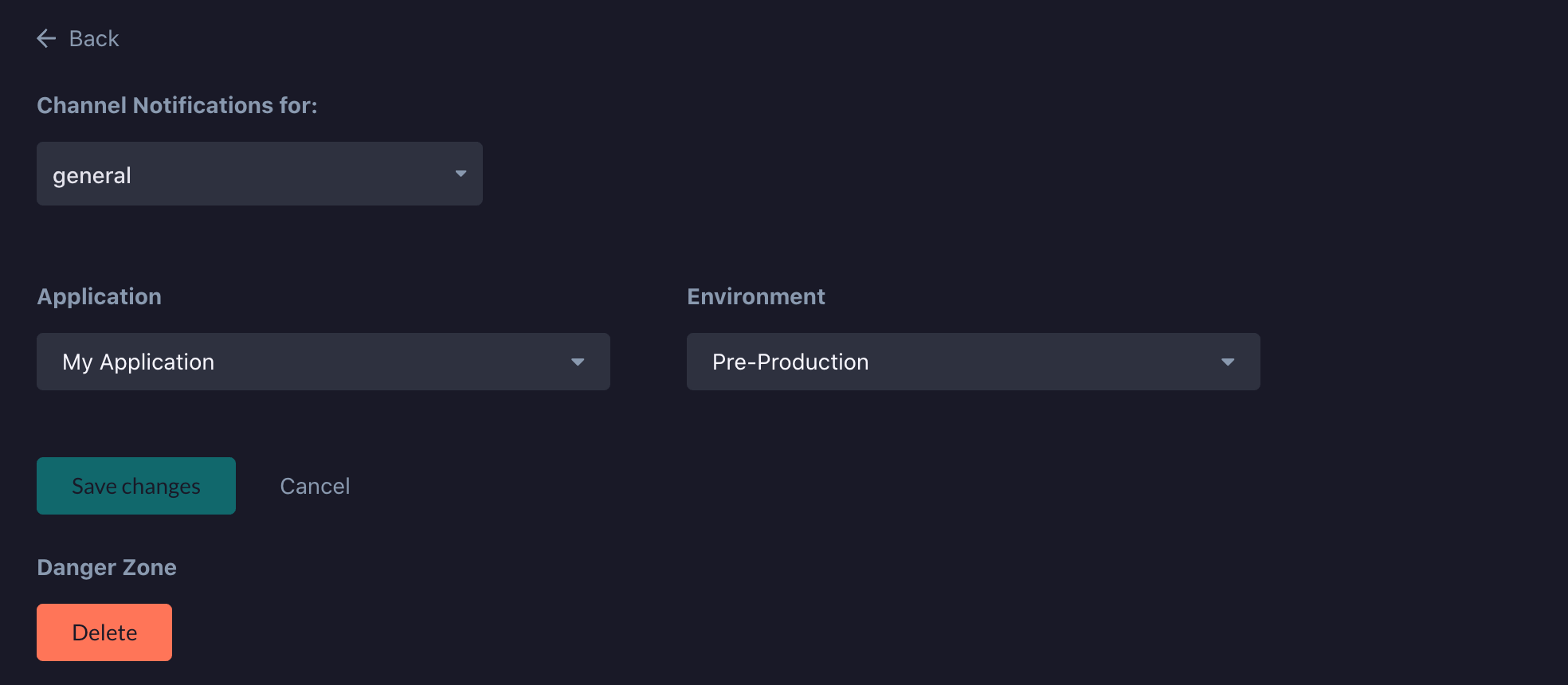
Configuration is assigned per-channel. For each connected Slack channel, specify which applications and environments send notifications when scanned.
| Setting | Default Behavior |
|---|---|
| Applications | If none selected, notifications sent for all applications |
| Environments | If none selected, notifications sent for all environments. Specific environments can only be selected when at least one application is configured. |
Edit or remove individual channel configurations using the vertical ellipsis menu on each row.
Private Channels
To send notifications to a private channel:
- Invite the @stackhawk bot to the channel by mentioning it in a message or through the channel member list.
- Once invited, the private channel appears in the channel dropdown.
If you convert a public channel to private, you must invite the StackHawk bot to continue receiving notifications.
Finding Channels by ID
If you cannot find a channel in the dropdown, search by Slack channel ID:
- Right-click the Slack channel and select View Channel Details.
- Copy the channel ID from the bottom of the modal.
Channel ID prefixes: C for public channels, G for private channels.
Troubleshooting
Channel Not Found
- Invite the @stackhawk bot to private channels you want to notify
- Search by the channel ID instead of name
Notifications Not Sending
- Verify a channel is configured with settings matching the scanned application
- Check the Slack status page for outages
- Confirm the integration is still installed in your Slack workspace
- Remove and reinstall the integration as a last resort (this resets all channel configurations)
If the problem persists, contact StackHawk Support.