
Snyk Code

StackHawk’s official Snyk Code integration.
Overview
StackHawk with Snyk Code helps teams identify and prioritize security issues by correlating static analysis (SAST) results with dynamic testing (DAST) findings.
With this integration you can:
- View Snyk Code results alongside HawkScan findings
- See the exact line of code associated with vulnerabilities
- Confirm whether SAST-detected vulnerabilities are exploitable through DAST validation
- Prioritize remediation based on correlated results
Features
- Automatically link HawkScan findings with Snyk Code issues during scan runs
- View Snyk Code issue details in the Finding Details view with direct links to Snyk
Requirements
StackHawk
You must have one of the following StackHawk account types:
- Pro
- Enterprise
- Enterprise Trial
Snyk
Your Snyk account must include a valid Snyk Code project. See Snyk Code for details.
Your Snyk account must have Snyk REST API access enabled. Contact Snyk support if you need to enable API access.
You can integrate with either a Snyk Group or a Snyk Organization.
Snyk Group integration
To integrate with a Snyk Group, you need:
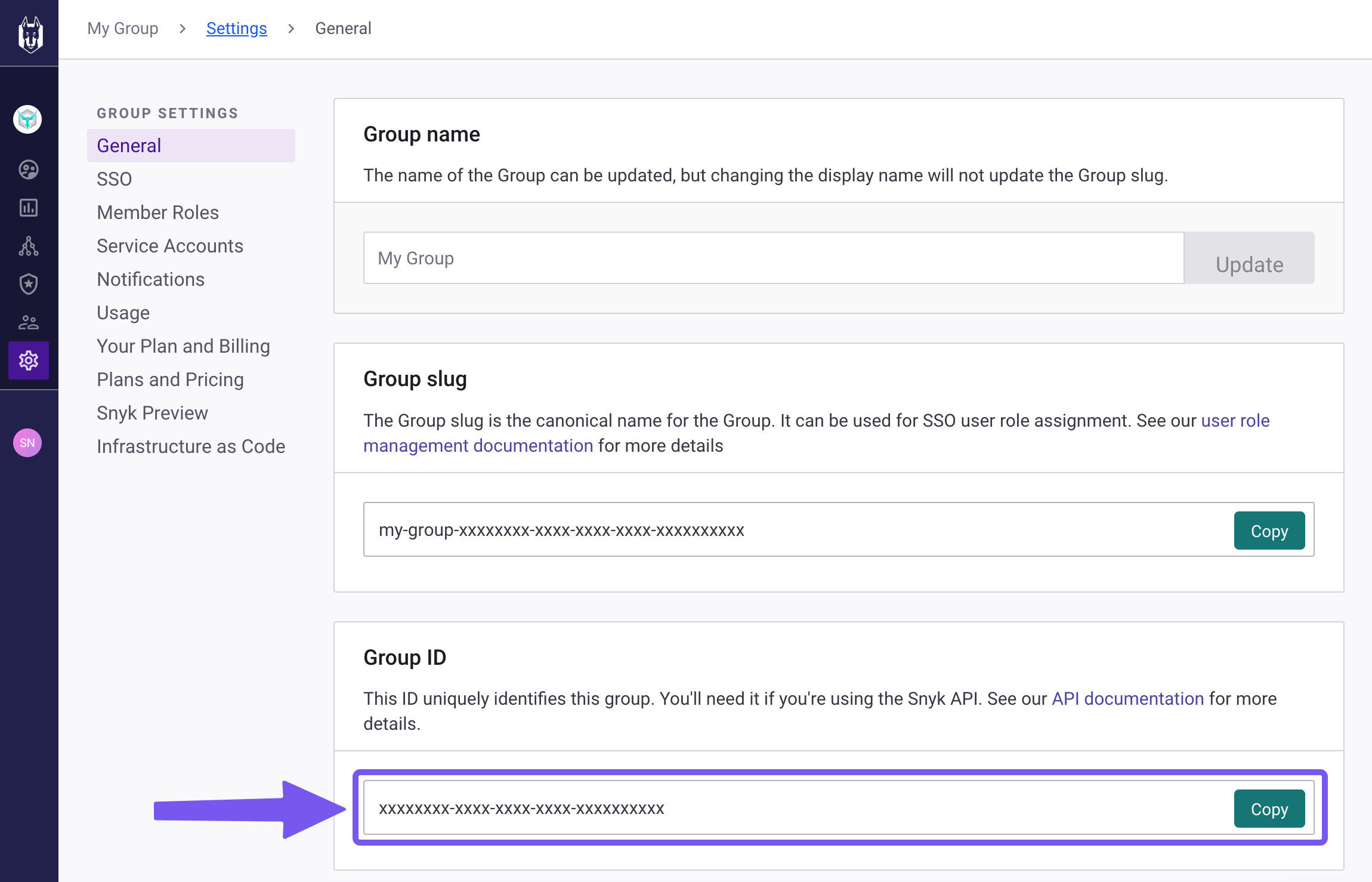
- Snyk Group ID: Navigate to Group > Settings > General > Group ID in Snyk.
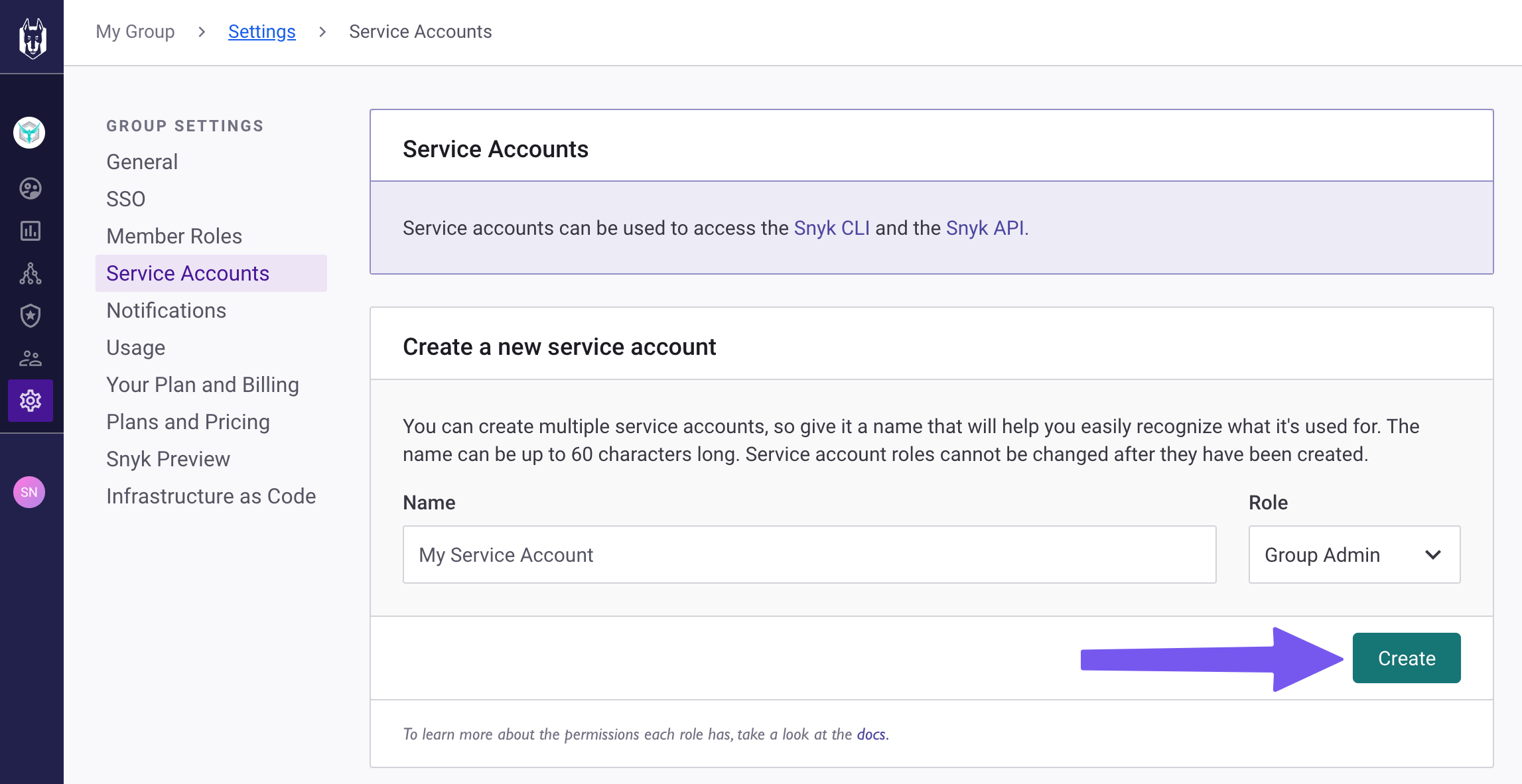
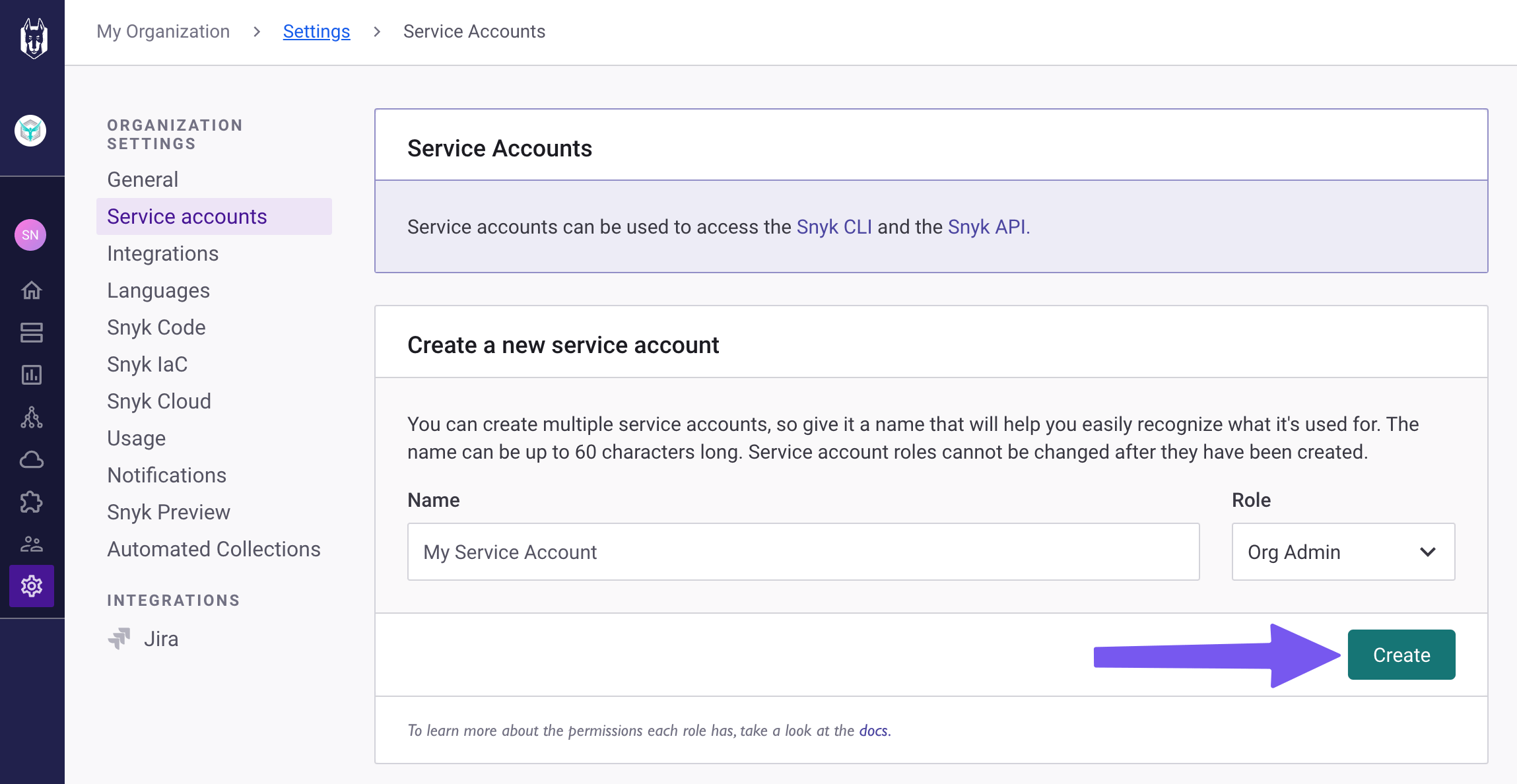
- Snyk API Key from a Snyk Group Service Account: Navigate to Group > Settings > General > Manage Service Accounts in Snyk to create a Group Service Account and API Key.
Snyk Organization integration
To integrate with a Snyk Organization, you need:
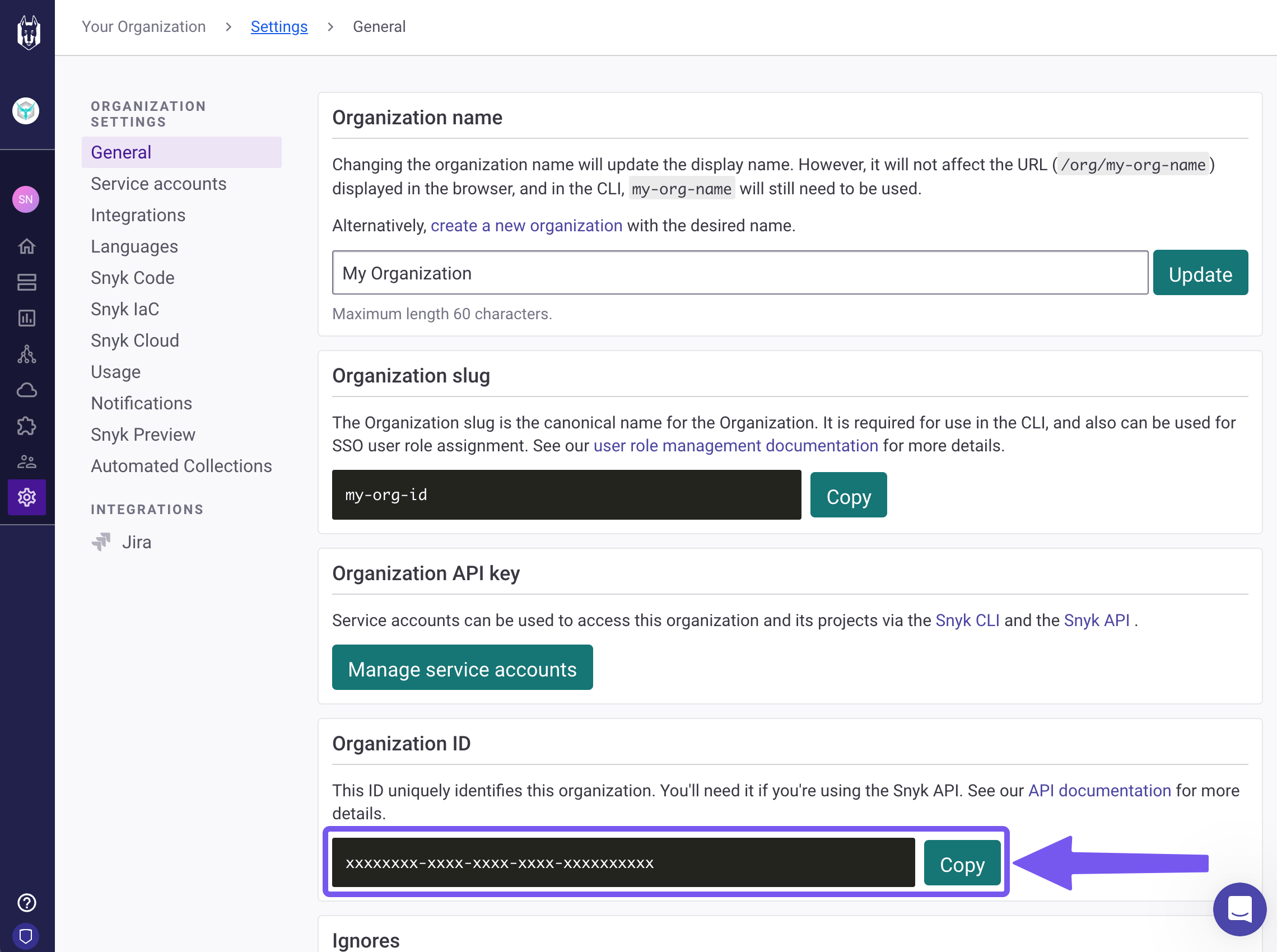
- Snyk Organization ID: Navigate to Organization > Settings > General > Organization ID in Snyk.
- Snyk API Key: Use either an Organization Service Account API Key (recommended) or a Personal API Key. Navigate to Organization > Settings > General > Manage Service Accounts in Snyk to create an Organization Service Account.
Setup
- Log in to StackHawk and navigate to the Snyk Integration page.
- Click Enable Snyk.
- In the Connect To Snyk modal:
- Select your Snyk Account Type: Group or Organization. If you are using a Personal Snyk API Key, select Organization.
- Enter your Snyk Organization ID or Snyk Group ID.
- Enter your Snyk API Key and click Next.
- In the Connect Snyk Project modal, select the Snyk Project and StackHawk Application you want to connect, then click Finish.
After setup, the Connected Projects list on the Snyk Code Integration page displays your connected Snyk Project and Application.
Configuration
You can add and delete connected projects on the Snyk Code Integration page.
Usage
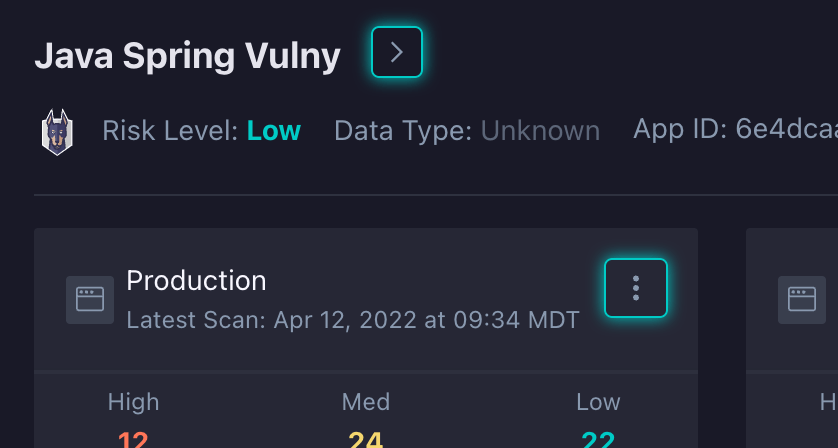
Once the Snyk Code integration is enabled, the Snyk logo appears throughout StackHawk when there is a Snyk connection. When a StackHawk Application and a Snyk Code Project are connected, HawkScan links its findings with correlated Snyk Code issues for all environments in that application.
Application badging
Applications mapped to a Snyk project display the Snyk logo under the application name.
Scan and finding list badging
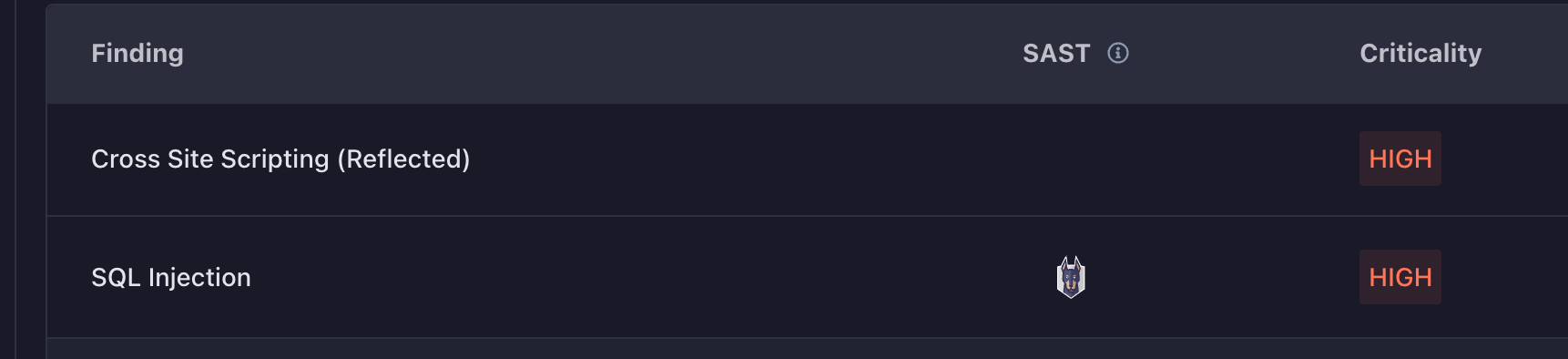
When viewing the scan list or the list of findings for a specific scan, a SAST column is present. If this column displays the Snyk logo, the scan or finding has a linked Snyk Code issue.
Scan list:

Finding list:
Finding details Snyk Code tab
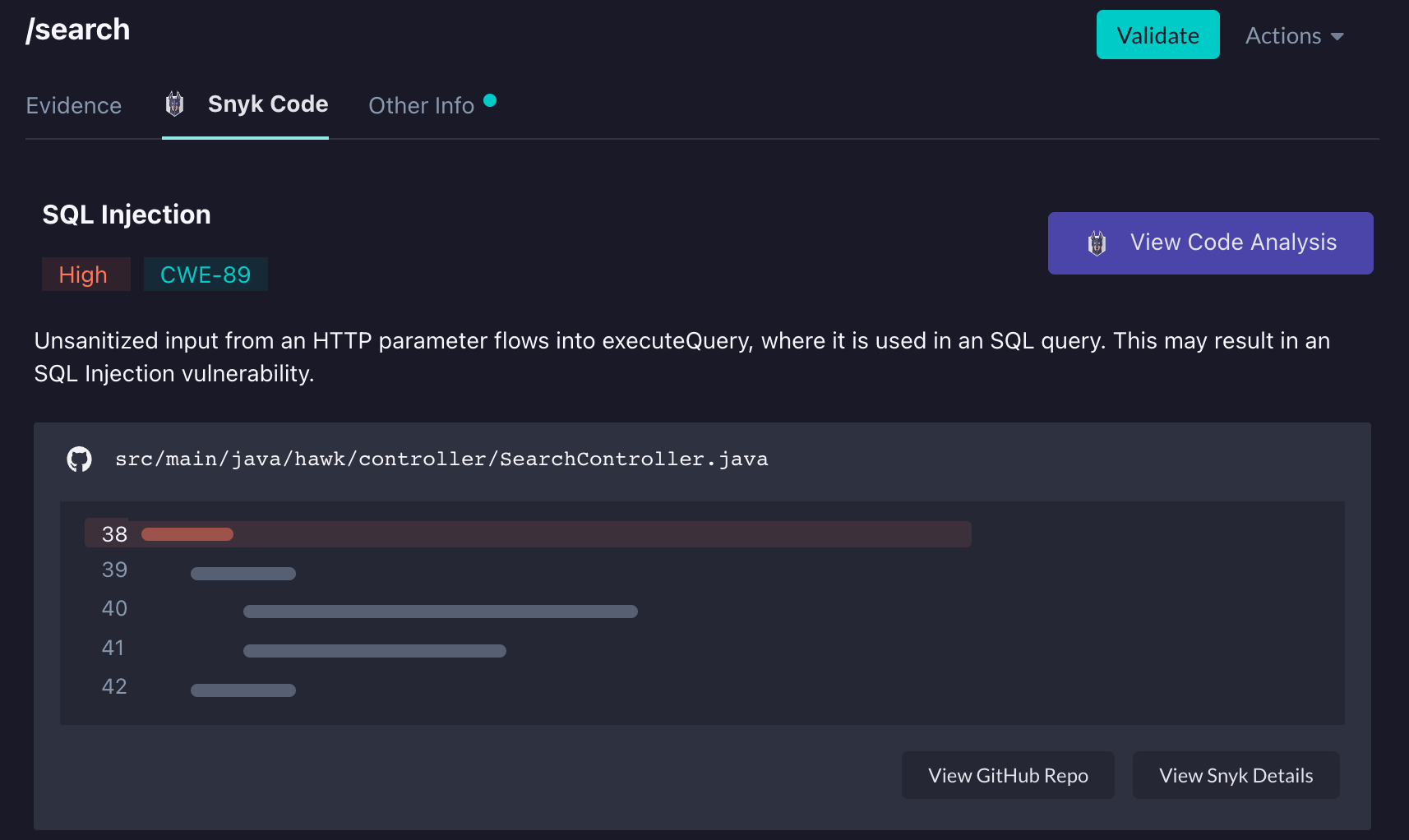
When viewing a finding that has a linked Snyk Code issue, the Snyk Code tab displays issue details with links to Snyk for more information.
The Snyk Code tab shows at most 15 instances of the found Snyk issue.
Troubleshooting
Setup issues: Verify that your Snyk account has REST API access (also referred to as V3 API access).
No linked Snyk Code issues: Ensure you have connected a StackHawk Application and Snyk Code Project in the integration settings.
Past scans not showing Snyk issues: Snyk issues are only linked for scans run after the Application and Project are connected. Past scans cannot be retroactively linked.
Environment-level mapping: Mappings are configured at the Application level. All scans for all environments in an application will have findings linked with Snyk Code issues. It is not currently possible to map a single environment to a Snyk Code project.
Feedback
Have suggestions, feature requests, or feedback? Contact StackHawk Support.