

Scans
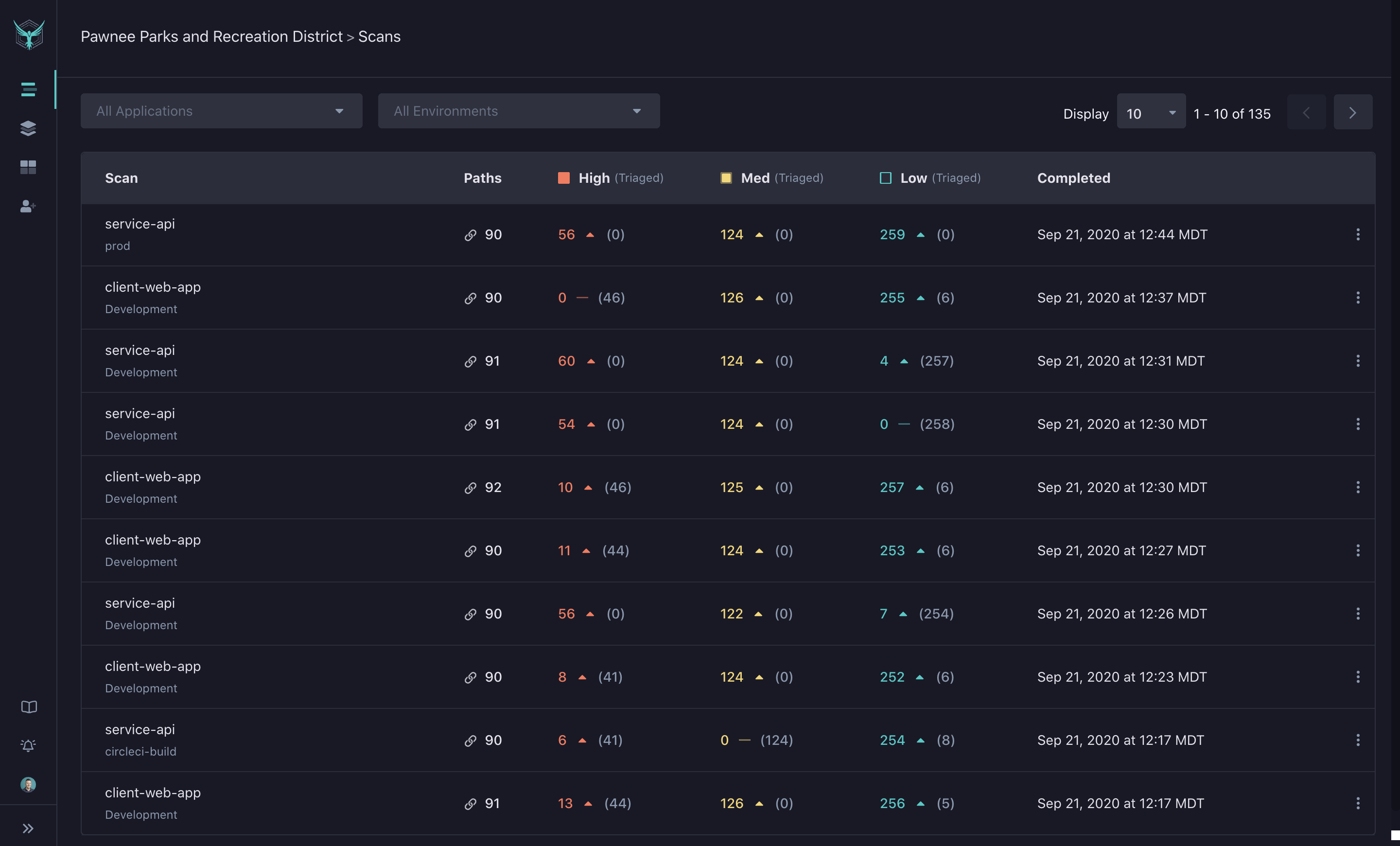
The Scans page displays results for all scans in your organization. For each scan, you’ll see:
- Number of identified paths
- Findings by severity (High, Medium, Low)
- Triage status
By default, the most recently completed scans appear first.
Scan Results
Paths
The number of paths the scanner was able to find and test is displayed in the ‘Path’ column. If this number is low, it is unlikely the scanner has found much of your application.
Read about adding authentication instructions to your YAML or feeding an OpenAPI spec to ensure greater app coverage.
Finding Severity
-
High: Findings with significant impact and likelihood of exploit, usually with a known corresponding CWE or CVE attached to the vulnerability.
-
Medium: Findings with significant impact or ease of exploit.
-
Low: Informational and low-impact discoveries, as well as security suggestions.
The number of new or unprocessed findings for each severity level is highlighted in a specific color. Findings that have been triaged in the Findings Detail page are displayed in gray.
Scan Details Page
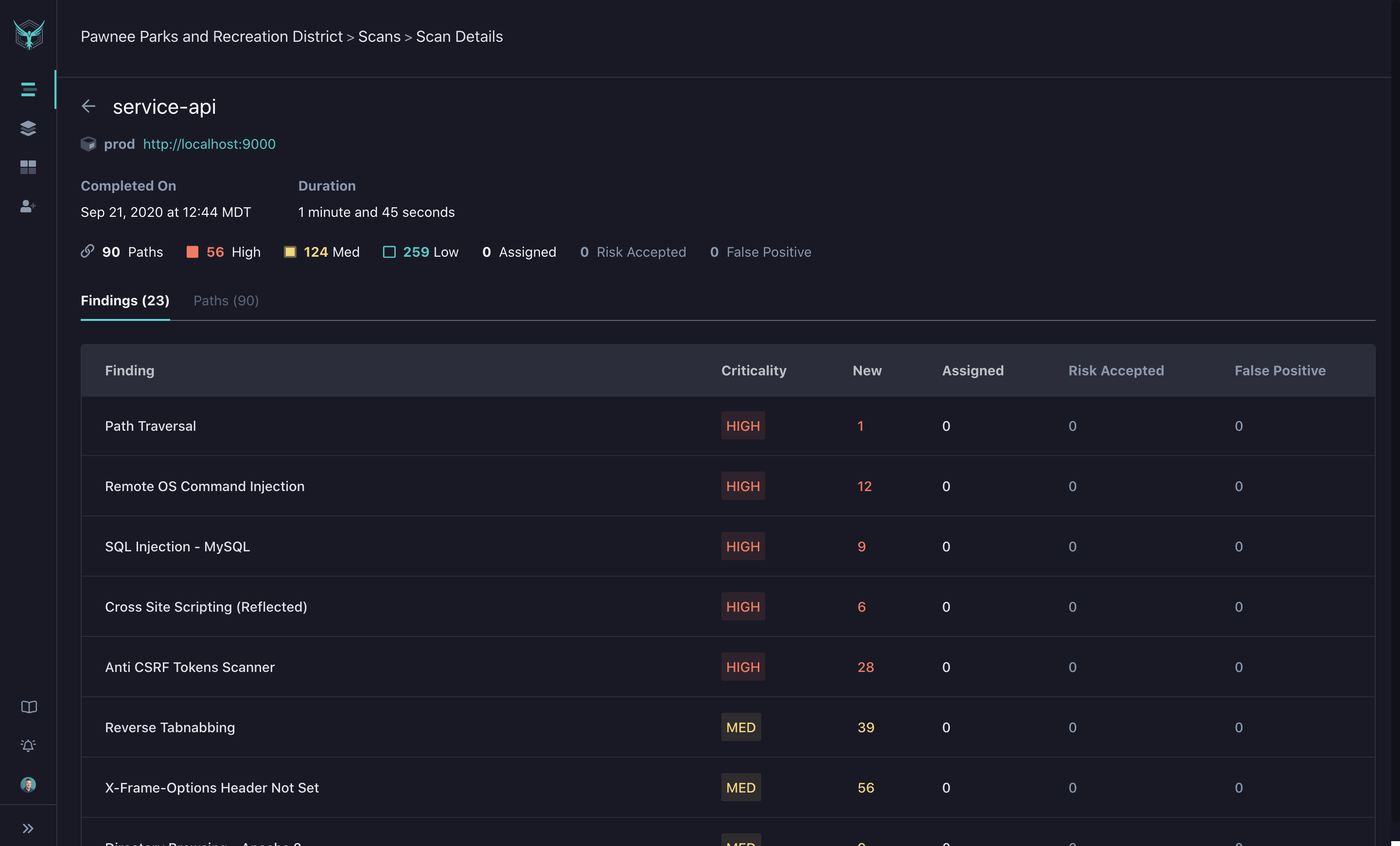
By clicking on a specific scan, you will be taken to the Scan Details view. Here you can find the list of findings identified by HawkScan. Each row displays the criticality of the finding and the current status of each identified path.
The Paths tab will allow you to view a list of all identified paths that were scanned.
Finding Details Page
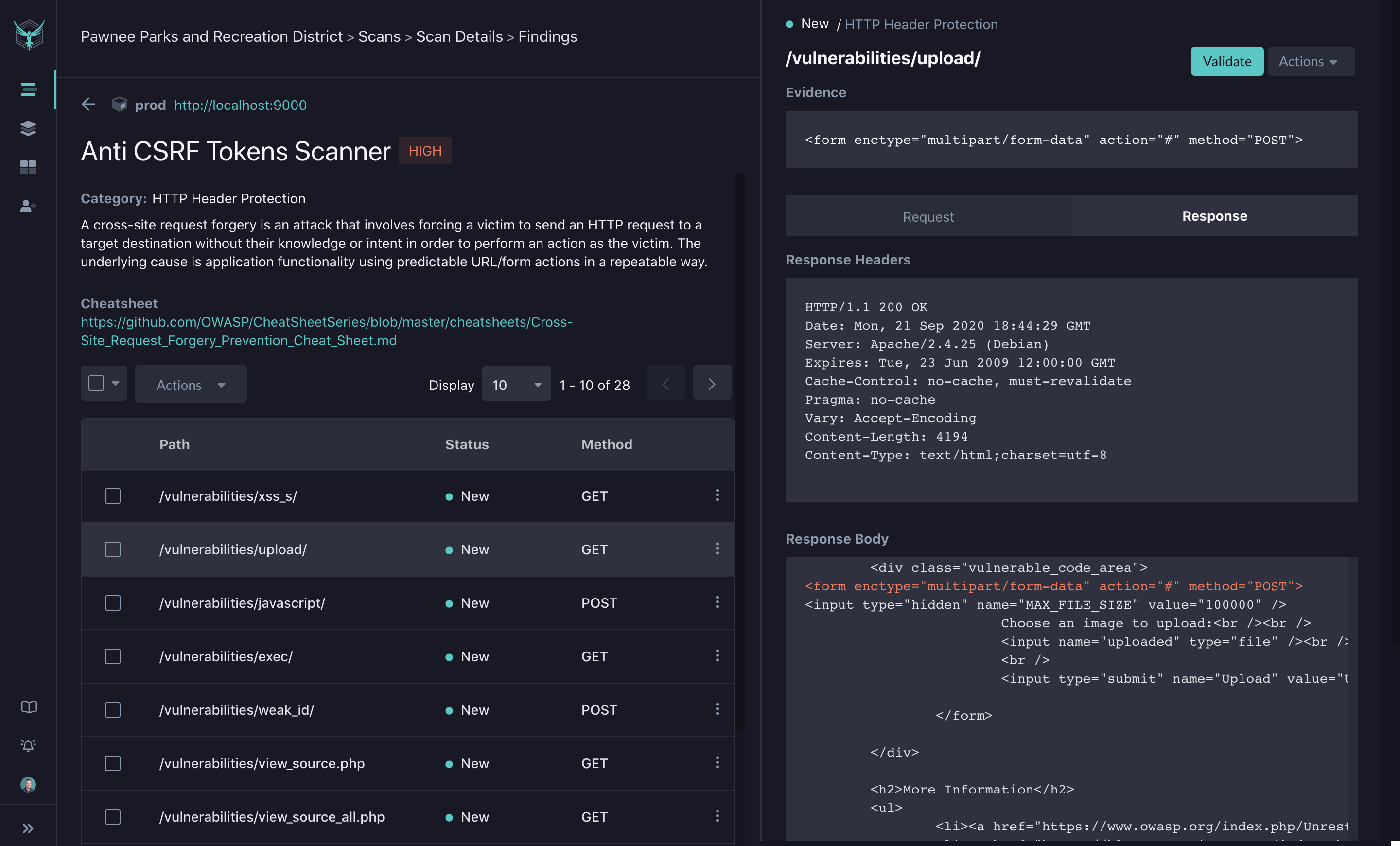
In the Scan Details page, you can click on a given finding to dive deeper through the Findings Detail view. In addition to the list of identified paths, you will see a description of the finding along with a link to any available OWASP Cheat Sheets. For the selected path, you will see details of the Request and Response payloads.
Validate Finding
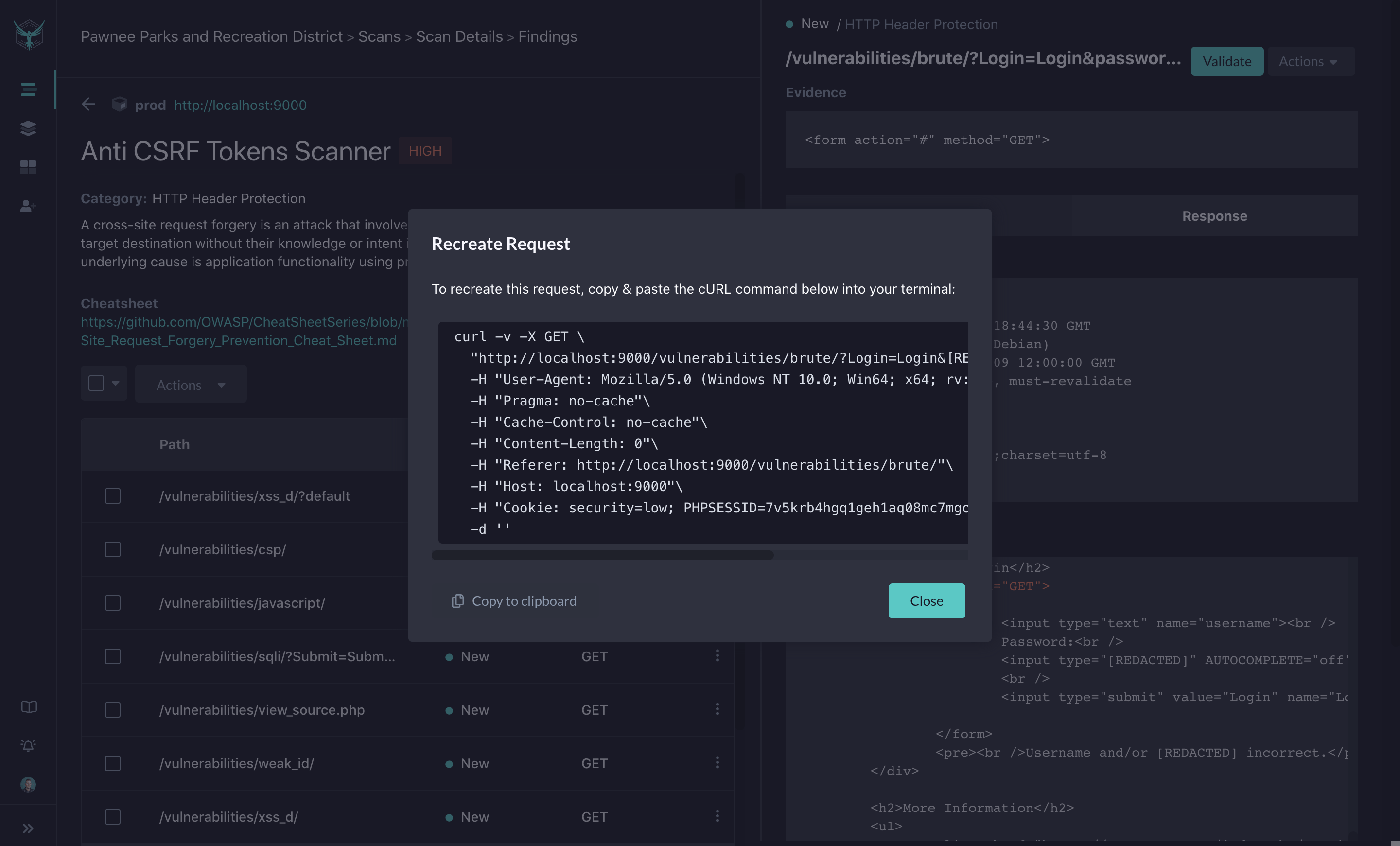
In addition to the Request and Response payloads, you can utilize the Validate action to generate a curl command to recreate the attack. This curl command will have the correct HTTP verb, headers and data fields to recreate the potential attack. By running this curl command in debug mode in your IDE, you can step through the requests to identify where the bug lives in code.
Actions
By default, unprocessed findings are marked as New. On future scan runs, the processed findings will still be tracked, but they will not be pushed as actionable items. On the Scans page, you will see processed findings denoted in gray, while actionable findings will be called out. Finding Actions allow you to update a status on a specific path to one of the following:
-
Assigned: These are findings that have been assigned for review and/or fix in whatever issue tracking tool your team uses. These are items that are in a backlog or are in process for investigation or fix. As you mark a finding as assigned, you can include a link to the associated ticket in the comments.
-
Risk Accepted: Some findings are technically potential security bugs or risks, but for one reason or another, you may elect not to fix them.
-
False Positive: Scan results may include findings that are actually false positives, and thus do not require a fix. These can be marked as false positives to quiet future noise.
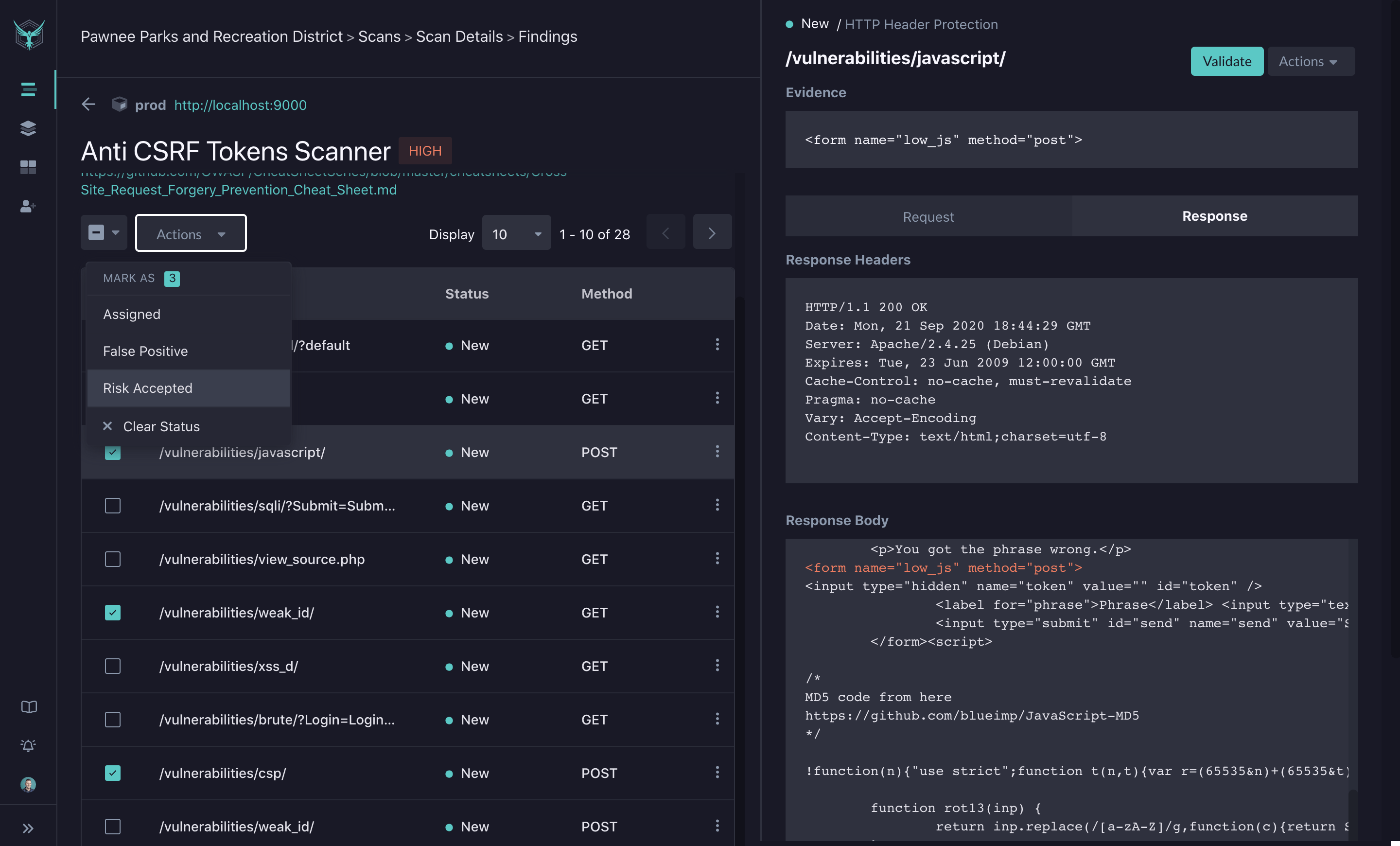
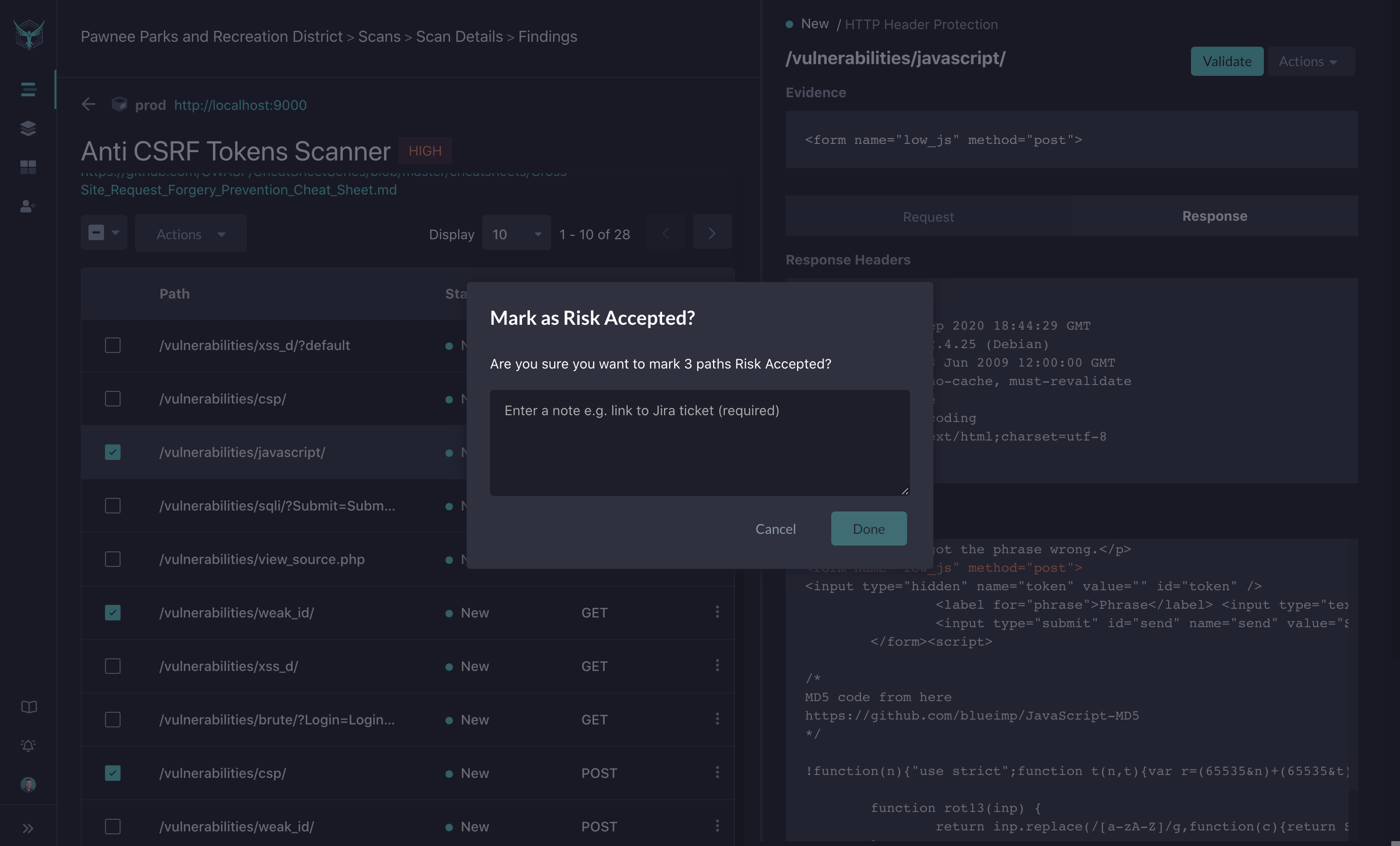
When you take action on a particular finding, you will be prompted to enter comments. This process creates documentation on why the action was taken and allows you to tie it to workflow tools like Jira.
Video Tutorial
Check out our video tutorial on finding remediation: