

Users
The Users page displays all members of your StackHawk organization. From here you can invite new users, manage roles, and remove members.
Access Users from the primary navigation in the StackHawk Platform.
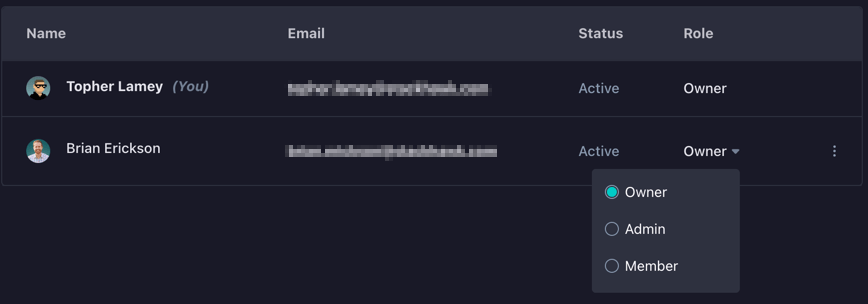
The user list shows:
- Name and Email for each member
- Role (Owner, Admin, Team Admin, Member, or View Only)
- Status (Active or Pending invitation)
Inviting Users
To add a new member to your organization:
- Click the Invite User button
- Enter the user’s email address
- Select a role:
- Owner - Full access including billing
- Admin - Full access except billing
- Team Admin - Team-scoped management of users, apps, and policy
- Member - Limited access to applications and scans
- View Only - Read-only auditor access across all teams
- Click Send Invite
The user will receive an email invitation to join your organization. Until they accept, they’ll appear as “Pending” in the user list.
Changing Roles
To change a user’s role, use the dropdown in the Role column. Role changes take effect immediately.
For details on what each role can access, see Roles.
Removing Users
To remove a user from your organization:
- Find the user in the list
- Click the menu (⋮) on their row
- Select Remove User
- Confirm the removal
Removed users lose access to all applications and scan data in your organization.