

Organization Security
The Security tab lets organization owners configure policies that apply to every user and every network connection into your StackHawk organization. Manage these settings from Settings → Security (under Org Settings).
Security settings are available on request. Contact StackHawk Support to have these settings enabled for your organization.
These settings can impact access to your organization for everyone — including SSO users, API key traffic from CI, and HawkScan uploads. Review changes carefully before saving.
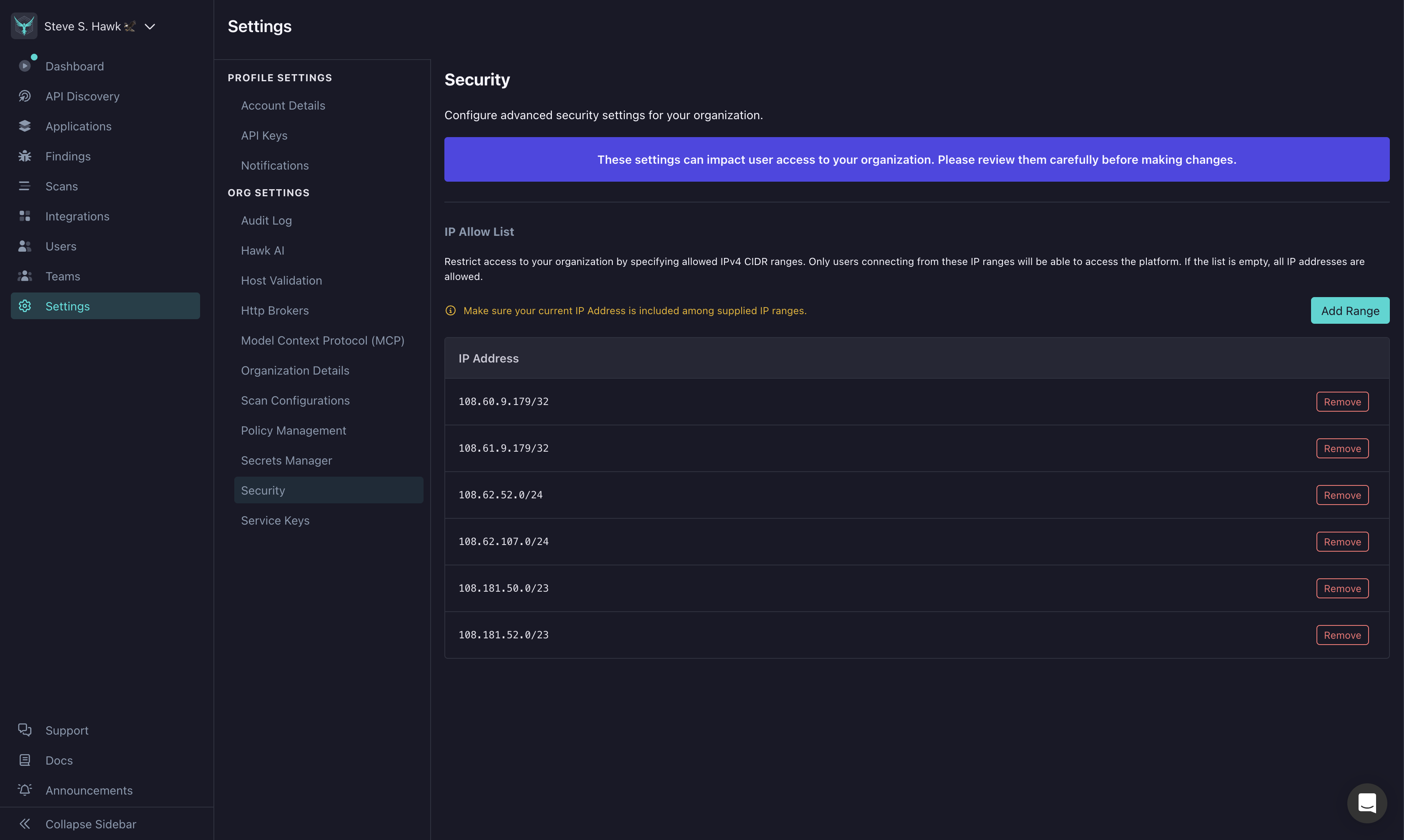
IP Allow List
The IP Allow List restricts all inbound network traffic to your StackHawk organization to a set of approved IPv4 CIDR ranges. When the list is populated, only connections originating from a listed range can reach the platform — this includes platform UI logins (including SSO), API key requests, HawkScan scan uploads, and any other StackHawk API call made on behalf of the organization. When the list is empty, all IP addresses are allowed.
Make sure your current IP address is included in at least one range before saving. If the only ranges in the list exclude you, you will be locked out immediately on save.
Adding a Range
- Go to Settings → Security.
- Click Add Range.
- Enter an IPv4 CIDR range (e.g.,
203.0.113.0/24). - Click Add to stage the range, then Save to apply it.
You can add multiple ranges to cover office networks, VPN egress IPs, corporate proxies, and CI runners that upload scan results.
CIDR Format
Ranges must be valid IPv4 CIDR notation and must be public IP addresses — the egress IPs your users and CI systems actually connect from. Private RFC 1918 ranges (e.g., 10.0.0.0/8, 172.16.0.0/12, 192.168.0.0/16) will never match inbound traffic to StackHawk and have no effect.
| Example | Covers |
|---|---|
203.0.113.42/32 | A single IP address |
203.0.113.0/24 | 256 addresses (203.0.113.0–.255) |
198.51.100.0/22 | 1,024 addresses across a larger block |
IPv6 ranges are not supported at this time.
Removing a Range
Click Remove on a row and then Save to apply the change. If you remove the last range, the organization returns to allowing all IP addresses.
Audit Logging
Every change to the IP Allow List — adds, removes, and the user who made the change — is recorded in the organization Audit Log. Review changes under Settings → Audit Log.
Recovering Access
If everyone in your organization is locked out by the IP Allow List, contact StackHawk Support. Support will verify your identity and ownership of the organization, and then work with you to update or temporarily disable the allow list so you can regain access.