

Service Keys
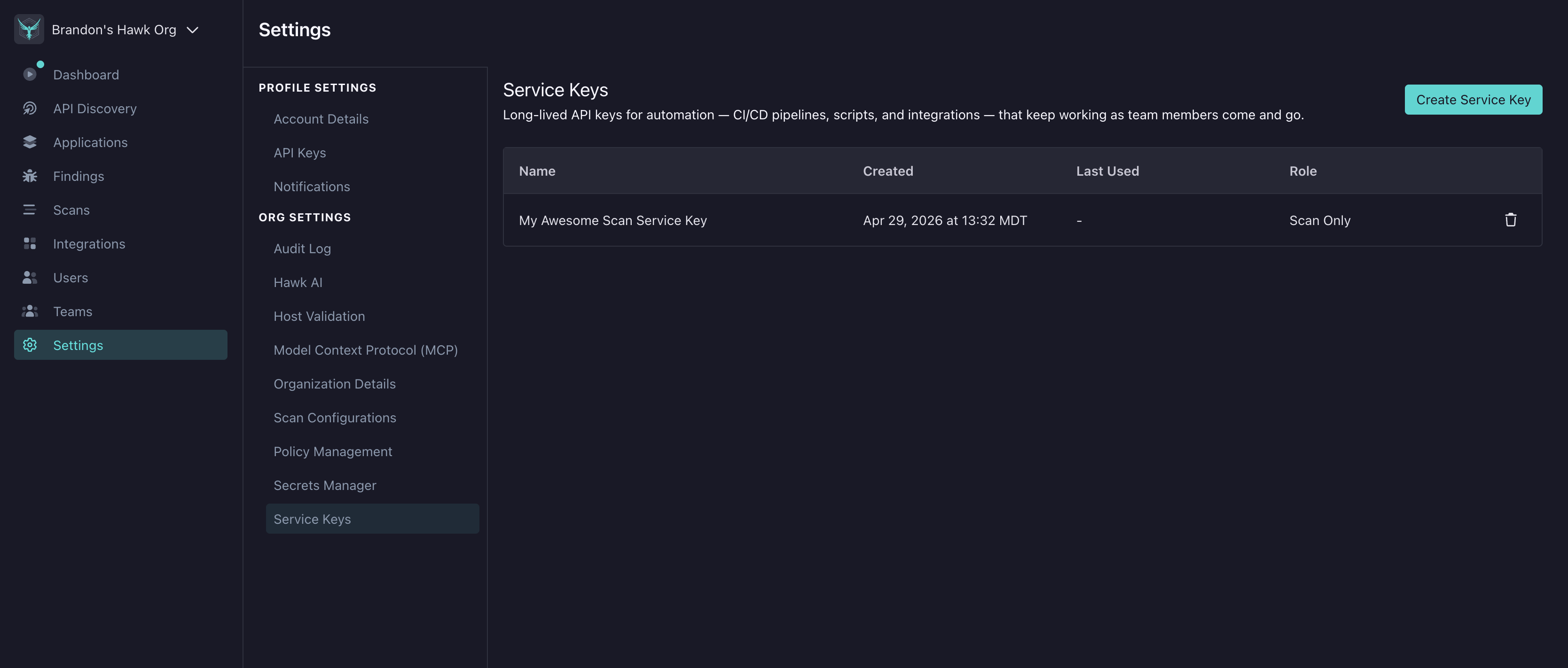
Service Keys are long-lived API keys that belong to your organization rather than to a specific user. Use them when you need StackHawk credentials for automation — today, that means running scans from CI/CD.
Unlike personal API keys (created from Settings → API Keys), a service key is owned by the organization itself, so its lifecycle is managed at the org level and independent of any individual user account.
When to Use a Service Key
Service keys are a powerful but deliberately narrow feature. Today they ship with a single role — Scan Only — which limits them to running and uploading scans. Reach for a service key when the caller is a CI/CD pipeline; stick with a personal API key for anything else.
| Use Case | Use a Service Key? |
|---|---|
| Scanning from a CI/CD pipeline (GitHub Actions, GitLab CI, Jenkins, etc.) | Yes — the key belongs to the organization, not to whoever set up CI |
| A developer running ad-hoc scans from their laptop | No — use a personal API key under Settings → API Keys |
| Reading findings, managing applications, or anything besides running scans | No — the Scan Only role cannot perform these actions. Use a personal API key owned by a user with the appropriate role |
Prerequisites
-
Your organization must have the Service Keys feature enabled. Contact StackHawk if you don’t see Service Keys in Settings.
-
Managing service keys is permission-gated:
- Viewing the Service Keys page requires the Read Service Account permission.
- Creating a service key requires the Write Service Account permission.
- Deleting a service key requires the Delete Service Account permission.
The UI hides controls you don’t have permission to use — the sidebar entry is hidden without Read, the Create Service Key button is hidden without Write, and the row-level trash icon is hidden without Delete.
Creating a Service Key
Access Service Keys from Settings → Service Keys in the platform.
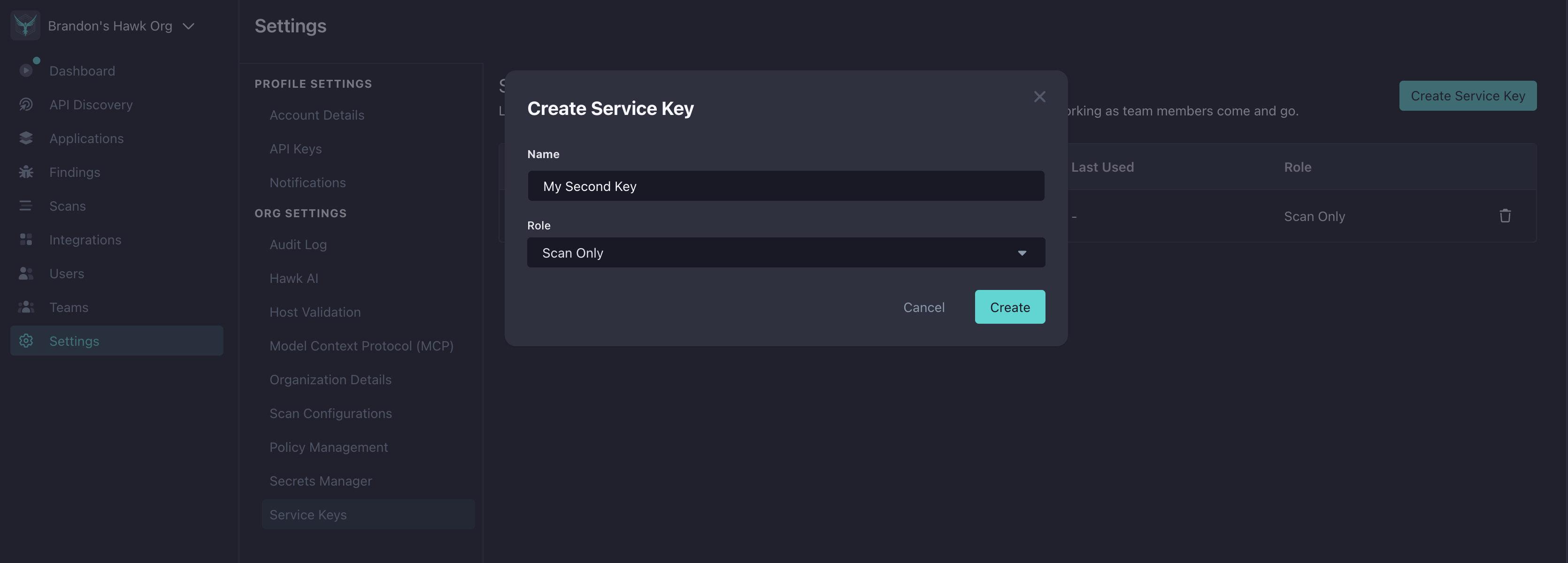
- Click Create Service Key.
- Enter a descriptive Name (e.g.,
github-actions-prod,nightly-scan-runner). The name also shows in the audit log so use something that identifies the automation. - Choose a Role. Today, only Scan Only is available — it grants the minimum permissions needed to run and upload scans.
- Click Create.
StackHawk shows the new key once in a banner at the top of the Service Keys page.
Save the key immediately. StackHawk stores only a hash, so there is no way to retrieve the full value later. If you lose it, delete the service key and create a new one.
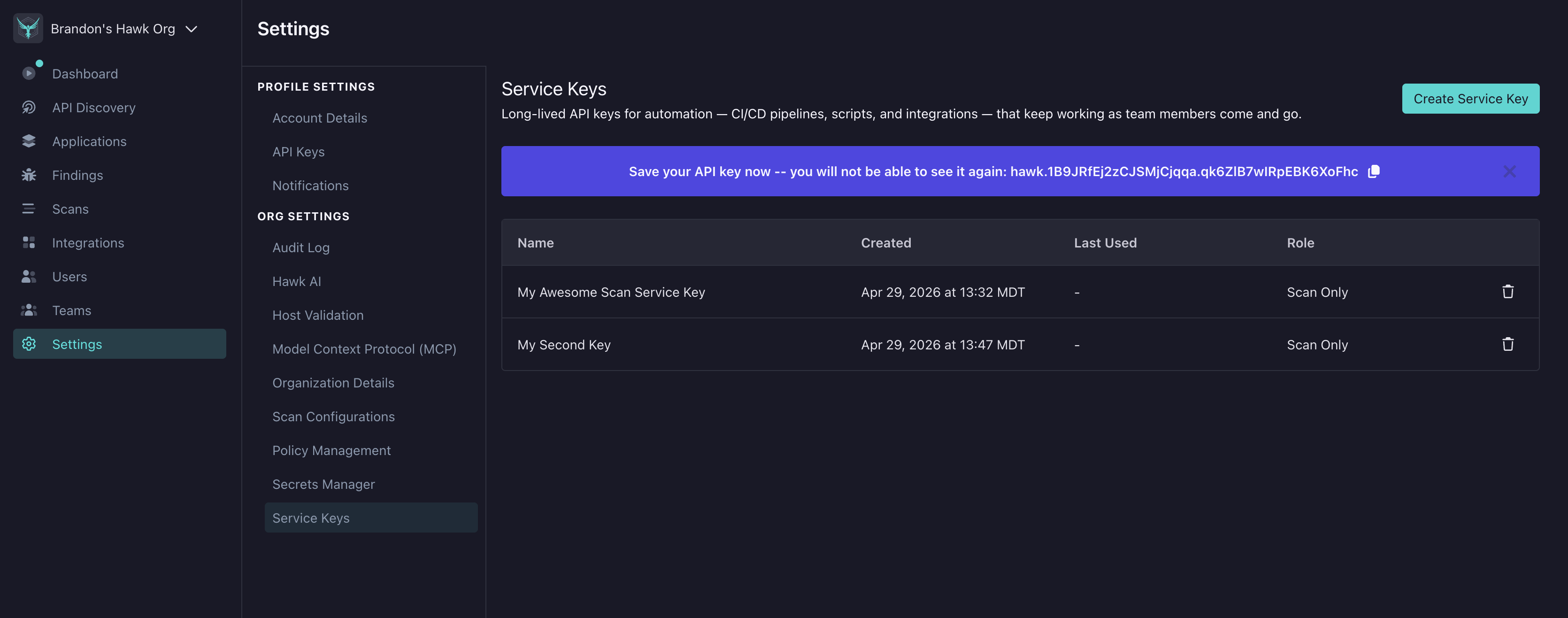
Click the copy icon to put the key on your clipboard, then paste it into your secret manager of choice (GitHub Actions secrets, AWS Secrets Manager, Vault, etc.).
Using a Service Key
A service key authenticates the same way as a personal API key — set the HAWK_API_KEY environment variable and run your scan. There is no special CLI mode for service keys.
In a CI/CD pipeline
Store the key as a secret in your CI provider and expose it to the scan step:
# GitHub Actions example
- name: Run HawkScan
  uses: stackhawk/hawkscan-action@v2
  env:
    HAWK_API_KEY: ${{ secrets.STACKHAWK_SERVICE_KEY }}
From a local script
export HAWK_API_KEY="sh_your_service_key_value"
hawk scan
See HawkScan — Running HawkScan for the full scan invocation reference.
Roles
Today, Scan Only is the only role a service key can have. A Scan Only key is purpose-built for CI/CD scanning and deliberately narrow.
A Scan Only service key can:
- Read organization, team, and application metadata needed to run the scan (including across teams, so a CI key can reach any application it is given)
- Read scan policies and scan configuration
- Read and update the application’s scan configuration during the scan
- Create scans, upload scan results, and read scan data
A Scan Only service key cannot:
- Triage findings or modify alert rules
- Manage users, teams, or integrations
- Modify organization-wide settings or billing
- Read the audit log
- Create, modify, or delete other service keys
StackHawk may add additional service key roles over time; new roles will appear in the Role dropdown automatically.
Security Recommendations
- One key per pipeline or environment. Prefer many narrowly-scoped keys over a single shared key so you can delete one without disrupting others.
- Give keys descriptive names. The name shows in the audit log against every scan the key runs.
github-actions-prod-checkout-serviceis more useful during an investigation thanci-key. - Store keys only in your secret manager. Never commit a key to source control or paste it into chat. StackHawk cannot show you the secret a second time.
- Rotate periodically. There’s no forced rotation window — establish your own cadence appropriate to your environment’s sensitivity.
- Delete unused keys. If you retire a pipeline, delete its service key rather than leaving it active.
Deleting a Service Key
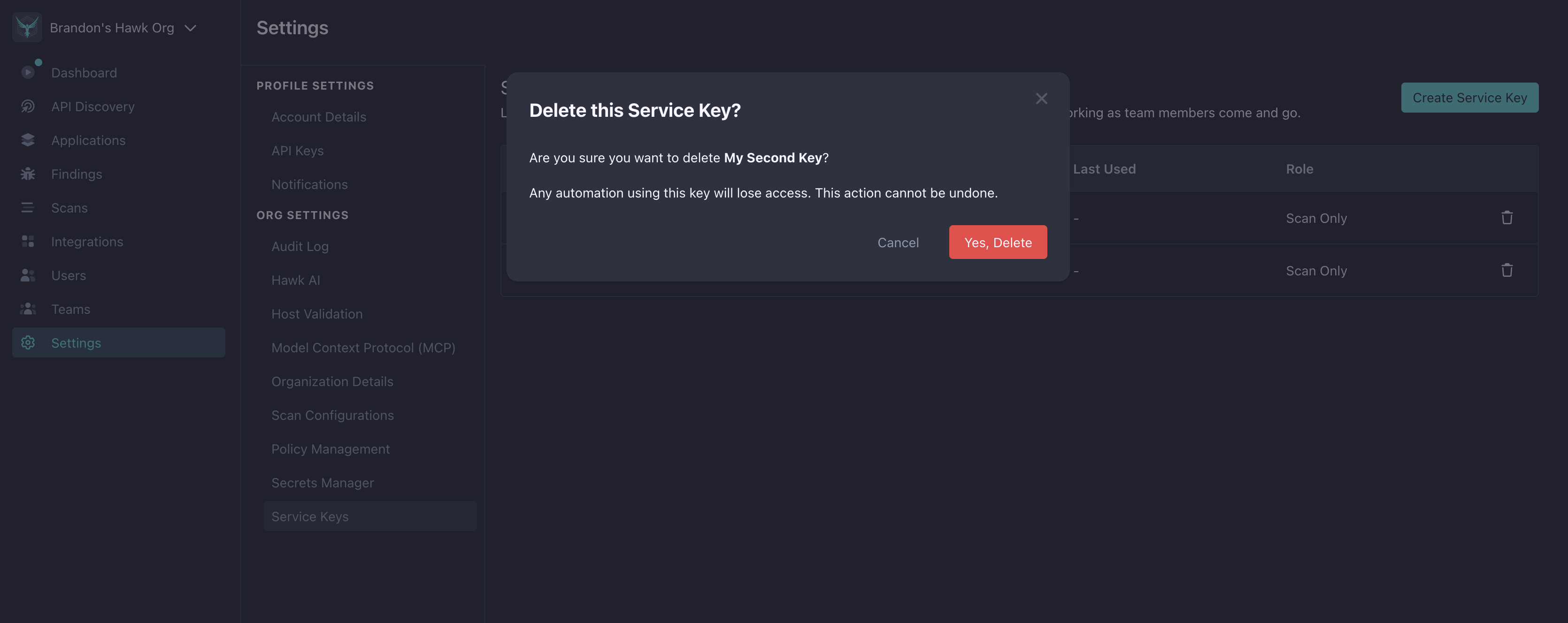
- On the Service Keys page, click the trash icon on the row you want to remove.
- Confirm in the dialog.
Deletion is immediate and cannot be undone. Any automation using the deleted key will start receiving 401 Unauthorized on its next request, so drain or update dependent pipelines first.
Audit Log
Every service key action is recorded in Settings → Audit Log:
- Service Key Created — includes the key name and role at creation
- Service Key Deleted — includes the key name and role at deletion
Actions performed using a service key (starting scans, uploading results) appear in the audit log under the key’s name with a (Service Account) suffix — for example github-actions-prod (Service Account) — making it easy to trace which automation ran a scan.
Troubleshooting
My automation started getting 401 Unauthorized out of nowhere
Check, in order:
- The key still exists. Open Settings → Service Keys and confirm the row is still there. Service keys are deleted immediately — there is no grace period. A teammate may have deleted it.
HAWK_API_KEYis set and is the full key. The secret starts withsh_. If your CI provider truncated or masked the value, rotate by creating a new key and replacing the secret.- The feature flag is still on. If the Service Keys feature was disabled on your organization, the key becomes unusable.
I created a key but can’t see it in the list
- Hard-reload the browser. The list is cached in-page; a soft reload may not refetch.
- Check your permissions. You need the Read Service Account permission to view the list. Someone with Admin or Owner access should confirm your role’s permissions.
The Create button is missing
You lack the Write Service Account permission. Ask an Admin or Owner to create the key for you, or to grant you the permission if that’s appropriate for your role.
The trash icon is missing on a row
You lack the Delete Service Account permission. Same remedy as above.
Frequently Asked Questions
How is a Service Key different from a personal API Key?
A personal API key is issued to and owned by a specific user. A service key is owned by your organization directly — its lifecycle is managed at the org level rather than tied to any individual user account.
Can I rotate a Service Key in place?
Not today. To rotate, create a new service key, switch your automation to the new service API key, then delete the old one.
How many Service Keys can I have?
There is no hard limit. Create one per independent automation so you can delete individual keys without affecting others.
Does deleting a Service Key revoke its API key immediately?
Yes. Deletion is atomic — the key and all of its authentication credentials are removed in a single step. Any in-flight requests will complete; the next request using the deleted key returns 401 Unauthorized.